
 Set for Student Project
 Lecture Note
 Lecture Video
 Activity
 Assignment
 Design Project
 Quiz & Exam

From BIM to Burn: A Beginner’s Guide to Preparing Revit Files for Laser Cutting

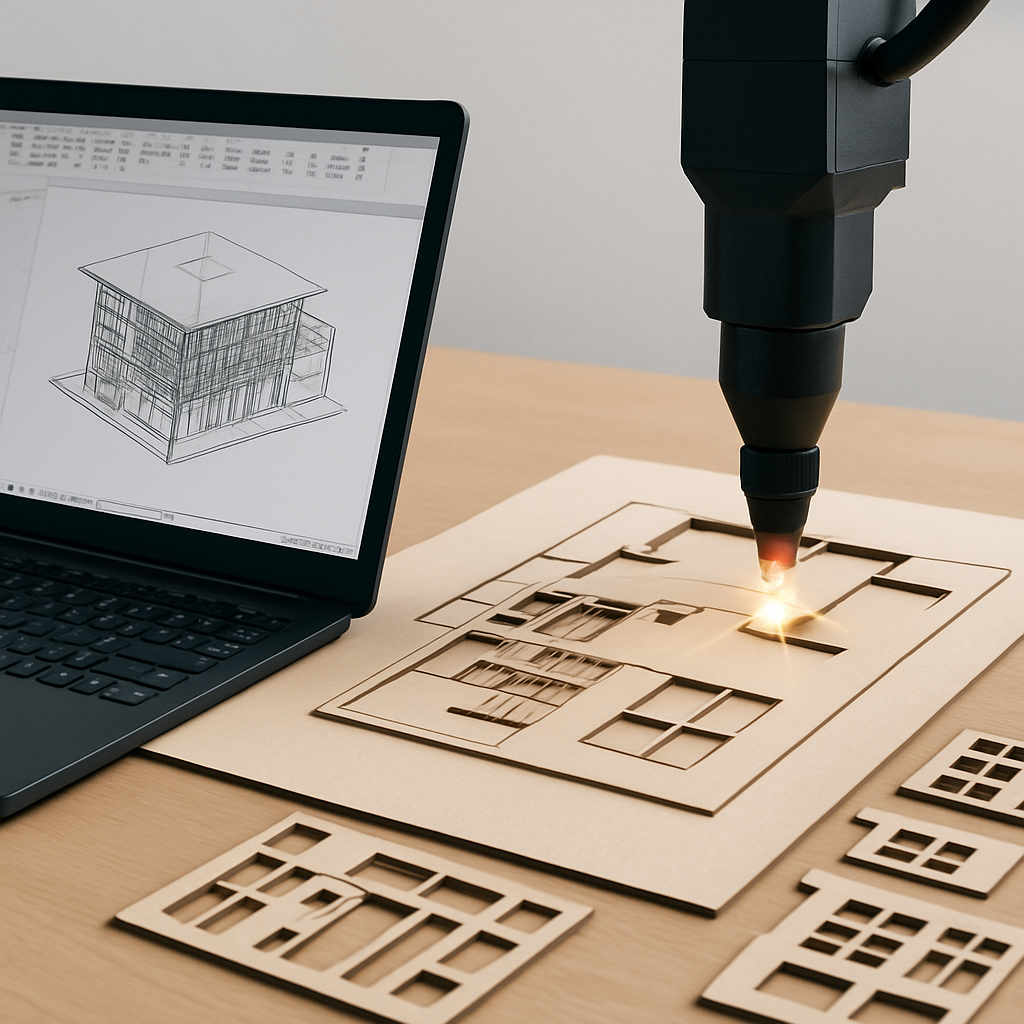
Why Preparing Revit Files for Laser Cutting Isn’t Just Exporting a DWG
If you’ve ever set foot in the world of digital fabrication with Autodesk Revit, you know the excitement of seeing your 3D designs make the leap from screen to physical form. Laser cutting, in particular, feels like magic—one moment you’ve got a digital model, the next you’re holding a tangible object. But here’s the catch: prepping your Revit files for laser cutting isn’t just a straightforward matter of hitting “export.” There’s a bit of a learning curve, a handful of technical hurdles, and, honestly, a splash of trial and error. Whether you’re an architect crafting a detailed site model or a student experimenting with a prototype, knowing how to translate all that complex Revit geometry into crisp, usable files will save you from a world of headaches down the line—and can mean the difference between a flawless finished product and a pile of expensive scrap.
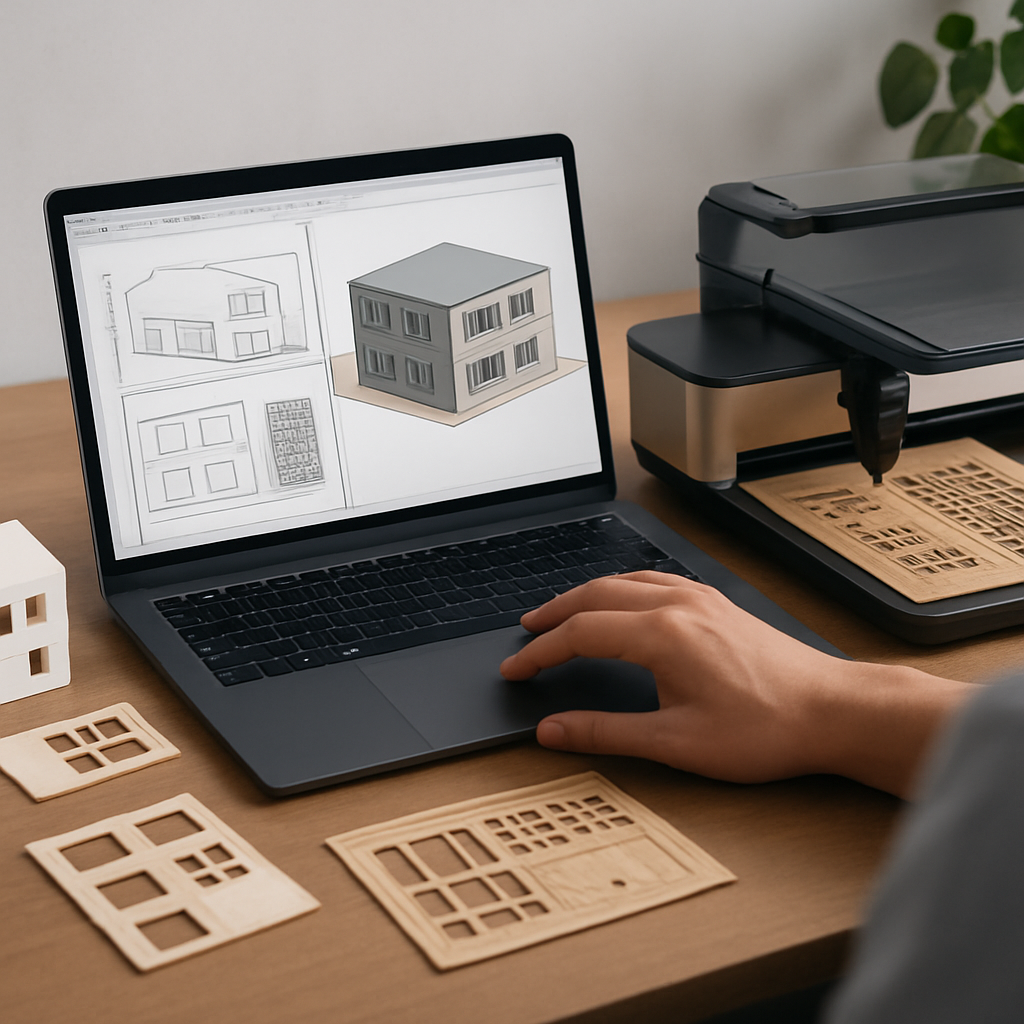
This process really boils down to bridging two very different worlds: Revit’s rich, information-heavy BIM (Building Information Modeling) environment, and the simple, precise language of vector files that laser cutters “speak.” And, trust me, plenty of folks trip up along the way. You’ll run into file compatibility issues, confusion over lineweights, and sometimes entire details just vanish during export. To save you from learning all this the hard way, I’ll walk you through a clear, beginner-friendly process—complete with warnings about common mistakes and some actual stories from the studio trenches.
Start with the End in Mind: Planning Your Laser Cut from Revit
Before you rush to export a single thing, pause and really think about your ultimate goal. What are you making? Is it a scaled site model, an array of intricate façade panels, some signage, or maybe something totally wild? Each type of project demands a slightly different approach. For example, if you’re working on an architectural model, you might want structural walls, contours, and landscape features all on separate layers. On the other hand, signage is all about those crisp, clean vector outlines. And don’t even get me started on material thickness—whether you’re using chunky 3mm plywood or delicate 1mm acrylic, it should influence how you set up your Revit file right from the get-go.
Let’s imagine you’ve been asked to whip up a 1:200 site model from your project in Revit. You’ll want to model only what actually needs to be cut: building footprints, roads, boundaries, trees—skip anything extra, like interior furniture or HVAC bits. To keep things tidy, assign each major element to a specific workset or subcategory. It sounds a bit tedious, but you’ll thank yourself later when it’s time to filter and export.
Here’s another scenario: a student is preparing elevation drawings for laser-etched façade panels. In this case, you’ll want to simplify the building’s geometry—ditch the tiny, overlapping elements or excessive depths. The cleaner your Revit model is, the less cleanup you’ll be stuck doing later in Illustrator or AutoCAD.
And don’t forget about scale! Most laser cutters only handle sheet material up to about 600x900mm (give or take). Know your design’s real-world dimensions early on, and if your project’s on the larger side, think about splitting it into smaller, more manageable panels. Taking the time to plan this stuff upfront can save you a lot of wasted material—and frustration—down the road.
Extracting 2D Geometry: Views, Details, and Clean DWG Exports
Here’s the reality: laser cutters don’t care about 3D; they need 2D vector files—usually in DXF or DWG format. But Revit’s bread and butter is all about rich 3D, parametric data. So your main job is to extract the right 2D geometry—detailed enough for fabrication, but not so cluttered that it confuses the machine or, worse, ruins your material.
The best way to do this is to set up dedicated Revit views specifically for laser cutting. If you’re cutting site plans, create a floor plan view at the correct level. For façades, set up clean elevation or section views. Then, dive into the Visibility/Graphics (VG) dialog and turn off anything you don’t need—furniture, annotation, text, grids. Keep it minimal. If your laser cutter uses color to distinguish between cut, engrave, and score (red for cut, blue for engrave, etc.), set up object styles or filters in Revit so your exported lines will already have the right colors.
Once your view is dialed in, go to Export > CAD Formats > DWG. Pay close attention to the export settings, especially layer mapping. This step is surprisingly important: assigning Revit categories to specific DWG layers gives you control over the cut order and cut type. Maybe put all your cut lines on one obviously named layer, and engrave lines on another. Also, always export at 1:1 scale—make sure this matches your material size!
Don’t be surprised if your DWG export isn’t perfect on the first try. It’s pretty common for extra lines, hatches, or even zero-length geometry to sneak in. Crack open the file in a vector editor like AutoCAD, Rhino, or Illustrator and do a cleanup pass. I’ve seen entire models ruined because stray annotation symbols or hidden lines made their way into the exported file—the laser cutter just sees more lines to cut, and before you know it, your prototype is toast. The solution? Refine your Revit view templates, clean up the DWG, and, if possible, preview your file in the laser software before committing to a full run. This simple step has saved many a project (and plenty of nerves).
Translating BIM Complexity into Fabrication Simplicity
Revit models are bursting with information, but when it comes to laser cutting, less is almost always more. You’ll often need to “flatten” all that 3D detail into straightforward outlines. For instance, those lovingly detailed extruded walls in your 3D model? In 2D, they should become closed polylines—simple shapes that a laser cutter can actually process. Deciding what to keep and what to ditch is a real design decision. What details matter at your project’s scale? What can be left out without losing clarity?
Take a complex façade with dozens of window mullions. In Revit, you may have modeled every tiny mullion as its own family. But for laser cutting, it’s usually best to represent just the outer perimeter and maybe a few major mullion lines—skip the smaller details that won’t even show up when cut from thin acrylic. Export your 2D elevation, then tidy up in your vector program: join broken lines, close shapes, and make sure there’s no overlap (double lines mean double cuts, and nobody wants that). Zoom in and check those intersections—tiny mistakes can be costly.
Here’s a practical tip you’ll wish you knew sooner: convert any arcs or curves into polylines before sending to the laser. Some machines don’t like splines and will butcher them into jagged edges. AutoCAD’s Flatten command or Rhino’s Make2D are lifesavers for flattening lines and making sure your 2D geometry is crisp.
If you’re building something with stacked layers—like a site model with different contour levels—export each layer separately. Clearly label each DWG or DXF file with its specific material and thickness, and don’t forget to add registration marks for easy assembly. Trust me, your future self (and anyone helping you assemble) will appreciate a logical folder structure and crystal-clear file names, especially when the pressure is on and the laser room is busy.
Final Checks: File Optimization and Laser Cutter Compatibility
Before you send your files off into the wild world of fabrication, it’s time for a few non-negotiable pre-flight checks. Laser cutters are completely unforgiving when it comes to the types of errors you can get away with in a digital workflow. So, first things first: check your scale. Open your file in the actual laser software—whether it’s Epilog, Trotec, or whatever the workshop uses—and make sure your dimensions line up with reality. It’s embarrassingly easy to mix up units; Revit defaults to millimeters, but some machines want inches, and you really don’t want to discover this after you’ve cut a whole batch at the wrong scale.
Next up, line colors and thicknesses. Most laser cutters assign different functions based on color—red for cutting, blue for scoring, black for raster engraving, and so on. Double-check that your lines are all at the correct thickness (hairline or 0.001” is a safe bet), and that you haven’t accidentally included fills or hatches. Non-vector elements can throw off the machine and lead to missed details, weird engravings, or total chaos.
Whenever possible, run a quick test cut on a scrap piece of material. Even seasoned pros get tripped up by reversed shapes, missing paths, or an unclosed outline that stops the cutter halfway through. And if you’re making multiples—like a stack of floor plates for a model—always start with one prototype before committing to a full batch. It might feel slow, but it’s way faster than discovering a mistake after 20 pieces have already been cut.
Here’s a real example: just last semester, a fabrication class spent hours troubleshooting why their prototypes kept coming out wrong. Turns out, their DWG files included hidden reference planes that weren’t visible in Revit, but showed up as ghost lines in the laser software. Now, every group checks their files in both AutoCAD and the laser preview before cutting, and the error rate has basically disappeared. Lesson learned (the hard way).
Bringing It All Together: Workflow Tips and Common Pitfalls
At the end of the day, getting Revit files ready for laser cutting is equal parts technical process and creative translation. No two projects follow exactly the same script, and you’ll find yourself refining your workflow with every round. Here’s a quick recap of the major lessons I’ve learned (sometimes the hard way):
- Model with fabrication in mind: Start with your material thickness, assembly style, and final scale in mind—don’t leave these decisions until the end.
- Use view templates: Make dedicated views for exporting; hide anything that isn’t absolutely needed for the laser cut.
- Export with precision: Carefully map your layers, always export at 1:1 scale, and give your DWG/DXF files a meticulous post-export cleanup in a vector editor.
- Flatten complexity: Simplify 3D geometry into clear, connected 2D lines and convert curves to polylines to avoid surprises on the cutter.
- Double-check everything: Test on scrap, confirm scale and colors in the laser software, and keep your files and folders obsessively organized.
Every time you send a project to the laser is another chance to improve your process. The more you pay attention to the details—both in Revit and during export—the more consistently you’ll get great, professional results. Don’t be afraid of the learning curve; every misstep is another step toward getting it right. Stick with these strategies, and you’ll soon be confidently turning your Revit designs into real, hands-on creations—making the leap from digital to physical, one laser pass at a time.


