
 Set for Student Project
 Lecture Note
 Lecture Video
 Activity
 Assignment
 Design Project
 Quiz & Exam

From BIM to Beam: A Beginner’s Guide to Exporting Revit Drawings for Laser Cutting

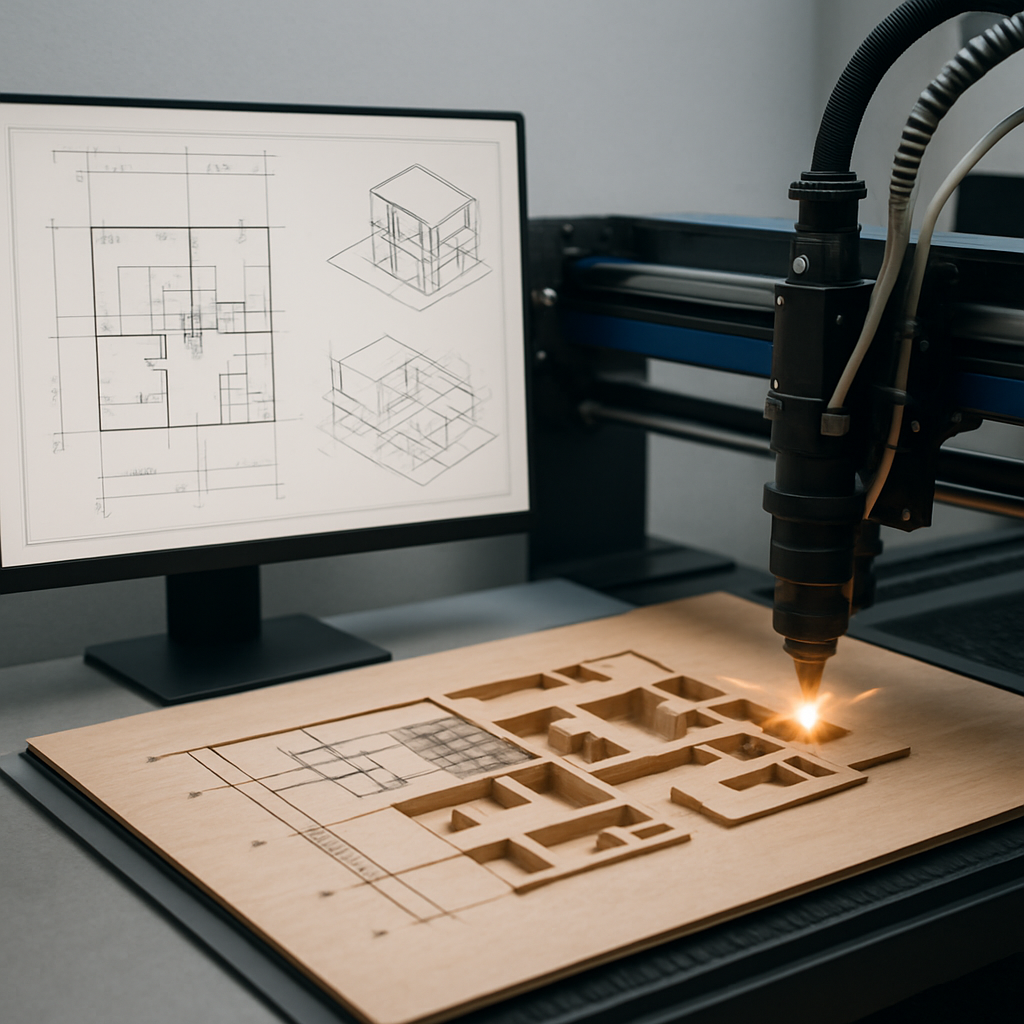
Why Exporting Revit Drawings for Laser Cutting Isn’t as Simple as It Sounds
If you’ve ever spent time designing in Autodesk Revit, you know how rich and three-dimensional those models can be. Layers upon layers, parametric families, the whole three-dimensional shabang—it’s pretty cool. But the moment you decide you want to take your digital masterpiece and turn it into something you can actually hold, especially with a laser cutter, well… that’s when things get interesting. In fact, the leap from BIM to the laser bed can feel as tricky as translating a Shakespearean sonnet into Morse code. Seriously, if you’re new to exporting Revit drawings for laser cutting, don’t be surprised by the maze of steps (and slight headaches) involved in getting a file that’s actually ready to be sliced up by a laser. The crux of the issue is this: Revit was built around a BIM-centric (Building Information Modeling) workflow, while laser cutters are all about sharp, clean, 2D lines and curves. You can see where things might get lost in translation.
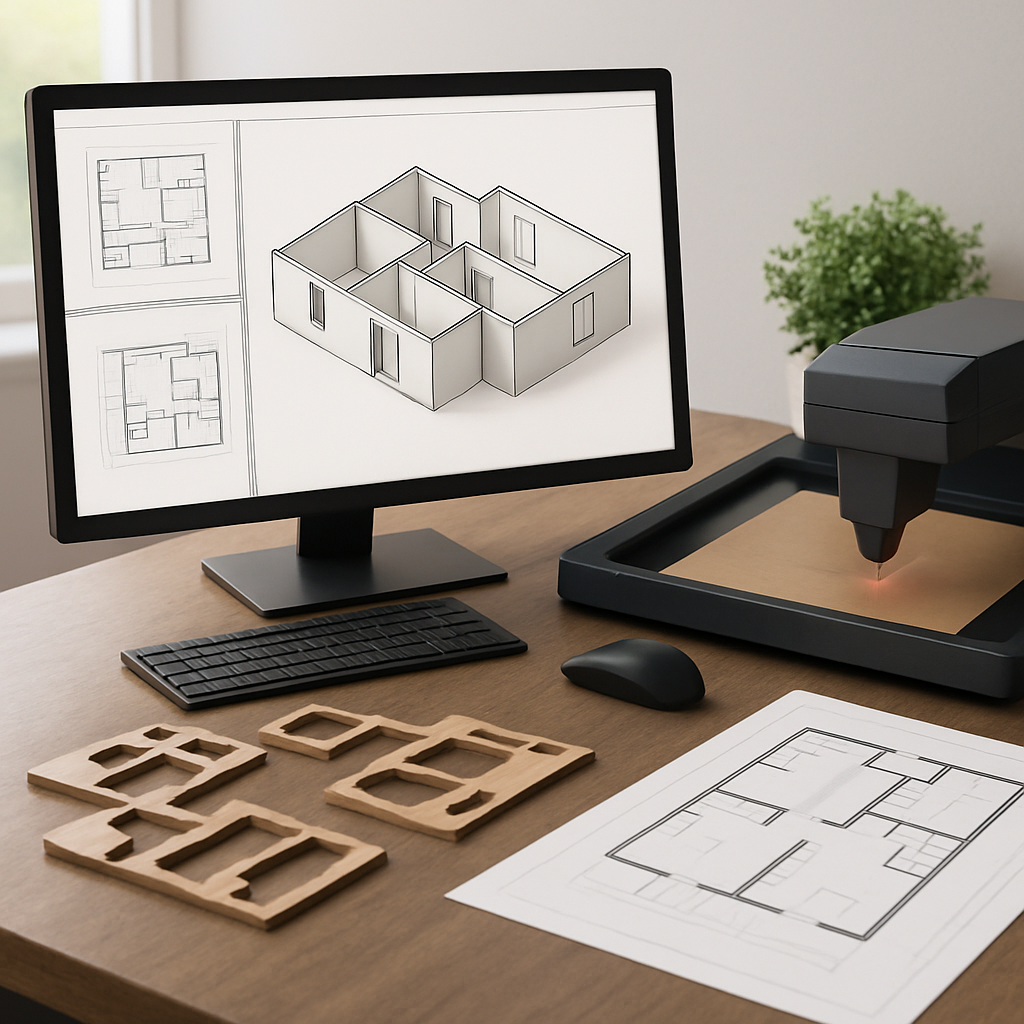
Laser cutters, as sophisticated as they are, couldn’t care less about your cleverly constructed parametric families, carefully crafted elevations, or that collection of view templates you worked so hard on. What these machines want is pretty simple—lines and curves, preferably in something like a DXF or DWG format. Your challenge, then, isn’t simply pressing “export.” Instead, you’re tasked with distilling your design down to its purest, most essential geometry, making sure the output is crystal clear and lines up with your fabrication goals. This process is every bit as much about design thinking as it is about knowing which buttons to push in your software. The more you understand both worlds—Revit’s complexities and the quirks of laser hardware—the more you’ll save yourself from headaches and wasted material, not to mention the satisfaction of making parts that actually fit together on the first try.
So, what follows is a practical, real-world guide to taking your Revit drawings through the twists and turns required to get them laser-ready. We’ll cover everything from prepping your model, to the actual export steps, to those sneaky pitfalls that catch most beginners off guard. Whether you’re dreaming up architectural models, custom decorative panels, or intricate pieces of art, getting this export process right is your ticket to seeing your digital ideas become physical reality—without a pile of ruined material as evidence of trial and error.
Preparing Your Revit Model: Simplify for Success
Before you even start thinking about exporting anything, hit pause and take a good look at your Revit model. Laser cutting is a different beast from 3D printing. While 3D printers can handle all sorts of crazy geometry, laser cutters are only interested in 2D outlines and profiles. There’s no mercy here—what you see is exactly what you get. Leftover lines, hidden stuff lurking on other layers, or doubled-up geometry can lead to botched cuts and wasted sheets. Honestly, one of the biggest mistakes folks make is skipping a thorough model cleanup.
Start by homing in on just the elements you actually want to cut. Let’s say you’re working on a façade screen: you probably only need the outlines of the perforations and the panel’s outer edge. Use Revit’s view filters and tinker with the visibility graphics. Strip out everything else. Better yet, make dedicated, laser-cutting-specific views—detail or drafting views work great—so you control every single thing that shows up. Trust me, don’t rely on your default floor plans or elevations; those are usually crammed with annotations, grid lines, random detail lines, and other noise that’ll just muddy your exports.
Now, take a closer look at your line weights and types. Here’s a little quirk: laser cutters will often interpret different colors or layers as different jobs—cutting, engraving, or scoring. Assigning these in Revit can be a pain, but if you stick to consistent line styles, you’ll save yourself a lot of hassle when you bring the file into CAD later. If your design calls for both cutting and etching, set up unique line patterns or colors for each, so it’s straightforward to separate them later in your vector editor.
Don’t forget to do a final accuracy sweep. Things like tiny gaps, doubled lines, or incomplete shapes can absolutely trip up the laser cutter. Zoom in and scrutinize those details. Use Revit’s detail tools to snap endpoints together and close up loops. Yes, it’s tedious, but catching these issues now is way easier than trying to fix them when you’re already at the machine.
Exporting Workflow: From Revit to Laser-Ready Files
Alright, so your Revit view is cleaned up and ready to go—it’s time for the big export. The gold standard for most laser cutters and vector programs is the DWG or DXF format. But, fair warning: how you export is just as important as what you export. If you just stick with Revit’s default export, you’ll probably end up with a bloated CAD file jammed with unnecessary layers, weird proxy objects, and leftover annotations you thought you’d hidden.
To get started, go to File > Export > CAD Formats > DWG. Pick your custom, laser-friendly view as the source. Now, before you hit export, click on Modify Export Setup. This is where the magic happens. Take a few minutes to look through the layer mapping. You can set up your own mapping so that Revit categories land exactly where you want them in CAD—on the right layers, with the right colors. This step is a lifesaver later on, especially if you’re separating your files for cutting and engraving. When in doubt, keep it simple—ditch the text, hatch patterns, and anything else that isn’t a cut line.
Pay extra attention to your units. Laser cutters are not forgiving when it comes to scale. Double-check you’re exporting in the units your fabricator expects. Most places use millimeters, but some are still on inches. If you’re not 100% sure, do yourself a favor and throw in a “test square” (like a 10x10mm box) and measure it in your vector editor after export to make sure it comes in at the right size.
Once you’ve exported, open that DWG or DXF in a vector editing tool—AutoCAD, Rhino, or even Illustrator will do the trick. This is your last line of defense. Go through and scrub out stray lines, join up polylines, and make sure all your shapes are closed loops. It’s so tempting to skip this step, but honestly, clean files equal clean cuts. You’ll thank yourself later.
Common Pitfalls and How to Avoid Them
No matter how carefully you prep, exporting Revit drawings for laser cutting has a way of presenting a few “gotchas” that can make your life harder. One classic rookie mistake: exporting 3D geometry as if it were 2D. If you use a 3D or perspective view, you’ll often get a spaghetti mess of overlapping lines and confusing outlines. Always—repeat, always—use a true orthographic view (so, plan, section, or elevation) and check the exported file in your vector software before you even think about sending it to the laser.
Another common headache is layer chaos. Revit’s export system loves to generate a ton of layers—many with cryptic, computer-y names. If you’re an old hand at CAD, you might shrug this off, but for laser cutting, it’s a nightmare. Ideally, you want just a few layers: cut, etch, maybe a “don’t cut” layer, and that’s it. Spend the extra time to map your Revit categories to logical, easy-to-understand layers during export. Or, use your vector editor to consolidate layers after the fact—trust me, this is 100 times easier before you start fiddling with laser settings.
Scale mismatches are another source of head-smacking frustration. It’s surprisingly easy to export a panel at 1:100 by accident and end up with a file the size of a postage stamp, instead of something that fills a wall. Always, always, always measure a known dimension in your exported file. Most laser software won’t auto-correct for this, so the responsibility’s squarely on your shoulders.
One last thing: watch out for curves and arcs. Some export workflows flatten these lovely, smooth shapes into ugly, jagged polylines. Not a good look, especially if your design relies on flowing lines—think organic screens or signage. Check your export settings and make sure splines stay as true curves. And if you’re not sure, run a small test cut before you throw a full sheet on the machine.
Beyond Export: Tips for Seamless Fabrication
Getting your Revit drawings out and into a DWG or DXF is only half the adventure. If you want your files to sail smoothly from your computer to the laser, you’ll want to pick up a few habits that seasoned fabricators swear by. Start with a test cut. Even if you’re pretty sure your file is flawless, running a quick prototype on a scrap piece can reveal sneaky problems—like missing paths, the wrong colors, or parts that end up flipped the wrong way around.
Keep your geometry as simple as you can. Laser cutters love closed, clean paths that don’t overlap. Try to combine lines into polylines, and avoid itty-bitty details that your chosen material or the laser’s kerf just won’t capture. Planning to assemble the parts? Don’t forget to build in allowances for material thickness, tabs, and slots. These tweaks are so much easier to make in your vector editor than trying to redraw everything back in Revit.
Don’t be shy about communicating with your fabricator. Send them more than just the final DXF or DWG—include a simple PDF preview with dimensions and notes about which lines should be cut and which should be engraved. This cuts down on miscommunication and helps avoid expensive mistakes. And if your shop has its own color or layer conventions, adapt to them—it’s way easier for you to change your file than ask them to adjust their workflow.
Lastly, save your export settings and document your workflow. If you hit on a process that works well for you and your laser shop, take the time to save your custom export templates and layer maps. This transforms what started as a multi-step hassle into a repeatable, almost effortless routine—so you get to focus on the creative side, not just the technical wrangling.
Fresh Perspectives: Revit’s Role in Digital Fabrication
Even though Revit was originally designed for architects and engineers, it’s increasingly finding a place at the heart of digital fabrication. More designers are discovering how useful BIM can be—not just for construction documents, but for rapid prototyping, custom installations, fixtures, and even ambitious art projects. By really learning how to export your designs for laser cutting, you’re giving yourself a pretty unique skill set—right at the intersection of creative design and hands-on making. And as digital fabrication becomes more and more central to the design world, that’s a seriously valuable place to be.
If you’re new to all this, don’t get discouraged by how complicated it feels at first. Every export, every mistake, is just another chance to make your process smoother. Over time, you’ll start to develop a feel for how to model, document, and export to get the results you want—balancing what looks good in Revit with what will actually work in the laser bed. Who knows? As laser cutting tech and BIM tools keep evolving, we might even get to a point where the whole process is nearly seamless, and all these workarounds are just a memory.
For now, try to see the whole export-to-laser workflow as a creative challenge, not just a technical annoyance. Getting Revit drawings ready for laser cutting is more than just a hurdle—it’s a unique opportunity to connect your virtual designs with the physical world, and to see your ideas take shape in real, tangible materials. There’s something pretty special about that, even if it takes a little extra work.


