
 Set for Student Project
 Lecture Note
 Lecture Video
 Activity
 Assignment
 Design Project
 Quiz & Exam

From Revit Model to Reality: A Beginner’s Guide to Laser Cut Floor Plates

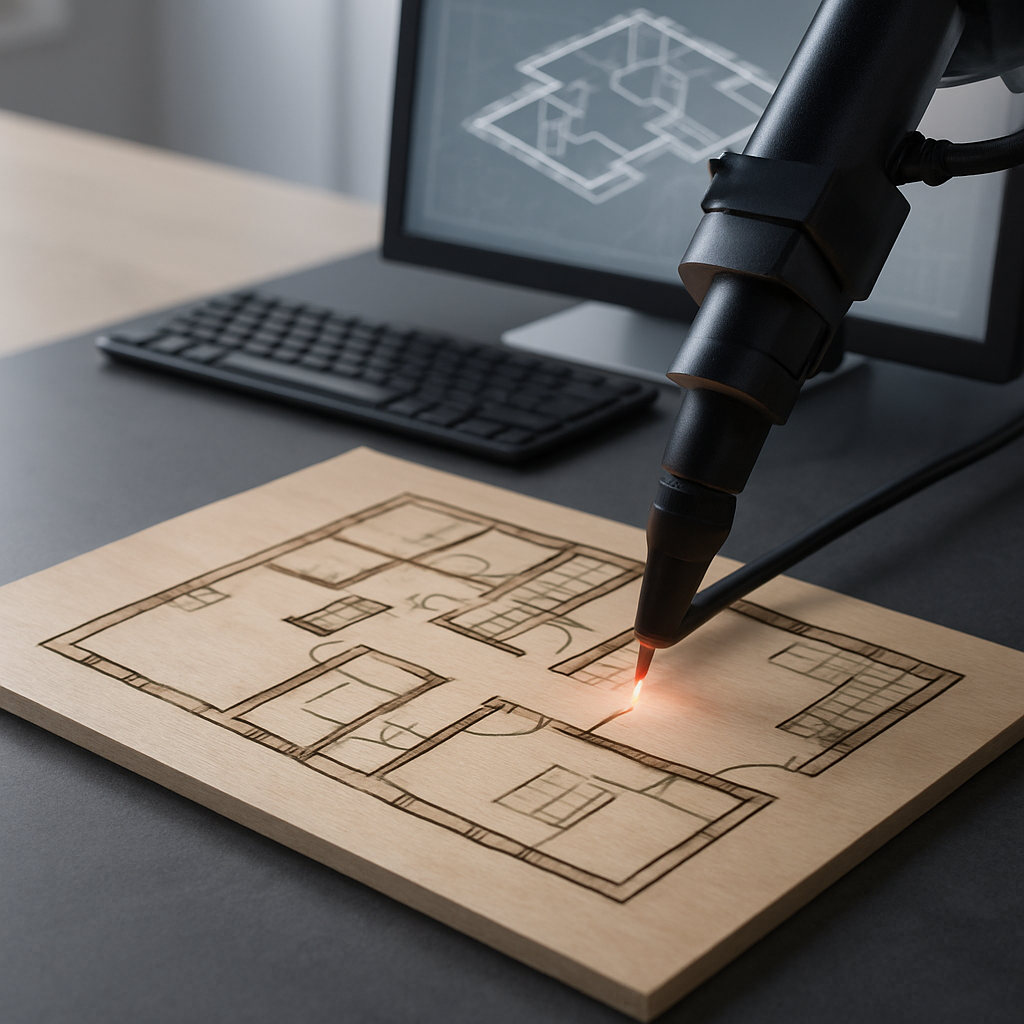
Why Laser Cut Floor Plates and Revit Are the Perfect Match
So, you’ve got a project on your hands that calls for floor plates with real precision—maybe you’re piecing together an intricate architectural model, putting together full-size construction templates, or just dreaming up some unique touches for an interior. Whatever the case, using Revit’s powerful modeling tools together with laser cutting can totally change the game. If you’ve spent any time in the AEC world, you know Revit, Autodesk’s go-to BIM software, is known for its accuracy and flexible parametric designs. But here’s the kicker: when it’s time to turn that digital model into a physical piece—especially when the details are fussy or the pattern is complex—laser cutting is what lets you bring those designs into reality with pinpoint consistency. But how do you actually connect your Revit model to a laser cutter and end up with something you can hold in your hands? Let’s break it down.
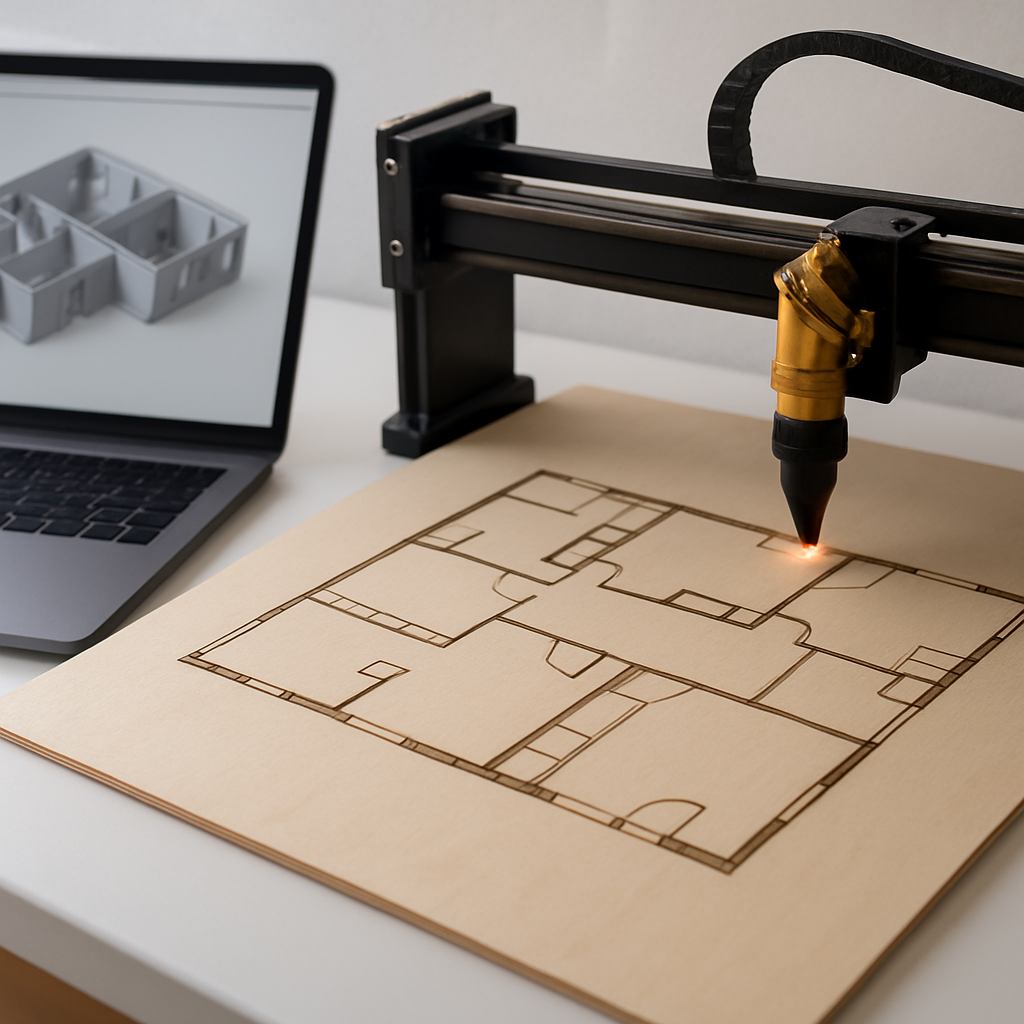
One of the main reasons laser cutting is so perfect for translating BIM data into actual objects is its ability to nail even the tiniest details—stuff that traditional fabrication methods can mangle or miss. If you’re new to this whole workflow, don’t stress. You honestly don’t need a decade of CAD experience or a shop full of fabrication tools to pull this off. The secret is all about prepping your Revit files the right way, avoiding the usual traps, and making smart choices with fabrication in mind from the get-go. I’ll walk you through the process step by step—you’ll see, it’s not as intimidating as it sounds, and you might even have some fun along the way.
Preparing Your Revit Model for Laser Cutting: Essential Steps
Before you even think about exporting anything, you need to get your model in order. Seriously, model organization is the first—and probably most important—thing you’ll do. In Revit, a floor plate might be built as a floor, a slab, or maybe even sketched out with detail lines or generic models if your design is on the wild side. However you’ve set it up, clarity is everything. Do yourself a favor and clear out any extra geometry, make sure all the loops that define your floor plate are closed, and double (or triple) check that everything sits at the right elevation. Remember: the laser cutter doesn’t see your beautiful 3D views or care about context—it just reads the lines you export. If your export is messy or ambiguous, you’ll end up wasting material, time, and probably patience.
Now, let’s talk scale for a second. Most laser cutters work from 2D vector files, so think about how big you want your finished floor plate to be. Are you whipping up a 1:100 competition model, or do you need a full-size template out on a bustling work site? Get your Revit sheet and view set up so the scale is spot on, and toss in a few reference dimensions so things don’t get mangled during export. Trust me, you don’t want to end up with a plate that’s accidentally the size of a business card. Another tip: keep material thickness in mind here. If you’ve got walls, columns, or stairs that are supposed to slot into your floor plate, will their footprints actually fit? It’s smart to add little cutouts or alignment marks right in your Revit draft. These extras can save a ton of post-cut headaches.
One more thing—and it’s a detail even seasoned folks miss—layer management. Before you export, assign different line styles in Revit for cutting, engraving, and etching. Most laser cutters can interpret colors, layers, or line weights as instructions, so this gives you a way to tell the machine exactly what should be sliced all the way through and what should just be lightly scored as a guide. Take a minute to do this now and you’ll thank yourself later.
Exporting from Revit: Best Practices for Laser-Ready Files
Here’s something that trips up a lot of people: laser cutters don’t speak “Revit.” That means you’ll need to export to something like a DXF, DWG, or maybe SVG file, depending on your setup. The best way is to create a clean, dedicated 2D view in Revit—one that shows just the floor plate outline and any essential features. Hide all the clutter: annotation, furniture, extra levels, you name it. Then use the ‘Export’ feature and pick whatever file format your fabrication shop or laser software asks for. DWG and DXF are usually the safe bets here for 2D cutting.
Now, pay attention to this next part, because it’s where a lot of projects go sideways. Make sure your exported lines form closed polylines—not a mess of overlapping or broken segments. If you don’t, the laser software might get confused, which can mean incomplete cuts or seriously weird toolpaths. Sometimes you’ll need to run your exported file through a vector editing tool—AutoCAD, Illustrator, Inkscape, whatever you’re comfortable with. In that extra step, you can join lines, check the scale, and tweak line colors or weights so they match your laser cutter’s settings for cutting, scoring, or engraving. Yeah, it takes a few more minutes, but it’s the difference between a perfect part and a pile of expensive scrap material.
There’s another little catch: if your floor plate design has any text, logos, or fancy patterns, make sure you convert your fonts to outlines (or paths) before you export. If you don’t, the laser shop might not have the right typeface, and suddenly your crisp labels turn into gibberish. Also, keep an eye on file size and complexity, especially for big or super-detailed floor plates—sometimes you’ll have to break the design into smaller, more manageable pieces to fit the laser bed. Think ahead and add tabs, registration holes, or alignment marks in your Revit model so that, later, piecing everything together is a breeze, not a puzzle.
Material Selection and Design Considerations for Laser Cut Floor Plates
Let’s talk materials for a second, because what you choose is just as important as how you prep your files. Laser cutters can handle all kinds of stuff—acrylic, plywood, MDF, various metals, even some specialty plastics. Each one comes with its own personality: acrylic leaves sharp, shiny edges but can crack if you go too heavy on the engraving; plywood is cheap and easy to work with, but watch out for edge charring; metals are tough and look slick, but you’ll need a beefier (and more expensive) laser. While you’re tweaking your Revit floor plate, always keep in mind the material’s thickness and the smallest detail the cutter can handle. The sorts of delicate features that will look sharp in your BIM model might end up vaporized or fused together if they’re just too tiny to survive the laser process. Trust me, I’ve learned this the hard way.
Think, too, about how your floor plate will actually be used. For architectural models, you’re usually aiming for lightweight materials and high engraving detail. But for templates or site guides, durability and dead-on dimensions matter way more. If your plate will be handled a bunch or needs to fit together with other pieces (maybe you’re building a snazzy model core or slotting walls into place), don’t forget to factor in tolerances. What feels like a perfect fit in Revit can turn into an exercise in frustration when the laser shrinks or swells the material by even a hair. Most designers I know do a quick test cut to dial things in before committing to the final run—tweak your file and you’ll save yourself a headache (and a few choice words).
And hey, don’t ignore aesthetics! Laser cutters can do a lot more than just slice out shapes—they can engrave subtle patterns, score fold lines, or even highlight circulation paths and zones. If you want certain features to pop, just use heavier or lighter lines in your export and let the laser handle the rest. A well-engraved floor plate doesn’t just function—it can actually tell the story of your space in a way that’s hard to match with anything else.
Common Pitfalls—and How to Avoid Them
Even the most experienced designers (myself included) have run into snags when taking a Revit file and turning it into a laser cut floor plate. One classic mistake: exporting way too much info. Overlapping lines, stray annotation, or hidden bits of geometry can confuse the laser, resulting in double-cuts, odd scoring, or random burn marks. Always, always review your 2D export in a vector editor before you fire up the cutter. Another surprisingly common pitfall is scale confusion—if the plate is designed at 1:1 but exported (or imported) at 1:100, you’re going to end up with something closer to a keychain than a model. Get in the habit of setting a clear scale convention and communicate it, both in the file name and in a little note to your fabricator. It’s not overkill—it’s just good practice.
Material warping is another sneaky problem, especially with thin or oversized plates. If you’re working on a big piece, you might want to add tiny tabs around the edge to keep it flat during cutting, or break the design into parts that fit together later. For projects with lots of repeated plates (like multi-story building models), export everything in batches and label each part clearly right on the engraving layer, so there’s no confusion when you start assembling.
And here’s one last tip: file compatibility can trip up even the best workflows. Not all shops or laser cutters use the same software, and a file that looks perfect in your hands might crash someone else’s system. When in doubt, reach out to your fabricator and ask what format they prefer, or see if they’ll send you a sample template to match. That one extra email can save you hours of frustration and make sure your floor plate comes out looking just like you imagined—on the first try.
Bringing It All Together: Turning Your Vision into a Laser Cut Reality
Bridging the gap between a detailed Revit model and a finished, laser cut floor plate isn’t just a technical slog—it’s actually a creative process that rewards careful planning and clear communication. When you organize your model thoughtfully, choose the right materials, and prepare your files with the laser’s quirks in mind, suddenly you’ve got a whole new way to share your designs, build accurate models, or even streamline construction on real-world projects. The coolest thing about this approach is how scalable it is. Whether you’re designing a little model for a studio crit or laying out templates for a multi-tower complex, the steps are basically the same. And the payoff? You end up holding a piece that’s precisely what you planned in the digital world—pretty satisfying, if you ask me.
As you get a couple of these projects under your belt, you’ll start to spot shortcuts—maybe you’ll put together your own Revit templates with layers ready to go, or save a library of engraving patterns that you know work every time. Teaming up with your fabricators can open up more possibilities too (they often have tricks you wouldn’t have thought of), like trying out new materials or automating repetitive tasks with scripts. At the end of the day, using Revit and laser cutting together gives you the muscle to prototype, iterate, and communicate your designs with a kind of clarity that’s tough to achieve with renderings alone. So if you’re itching to take your floor plate designs from screen to shop, now’s as good a time as any to roll up your sleeves and see what you can make happen.


One thought on “From Revit Model to Reality: A Beginner’s Guide to Laser Cut Floor Plates”