
 Set for Student Project
 Lecture Note
 Lecture Video
 Activity
 Assignment
 Design Project
 Quiz & Exam

From Revit to Reality: A Beginner’s Guide to Laser Cut Exterior Walls

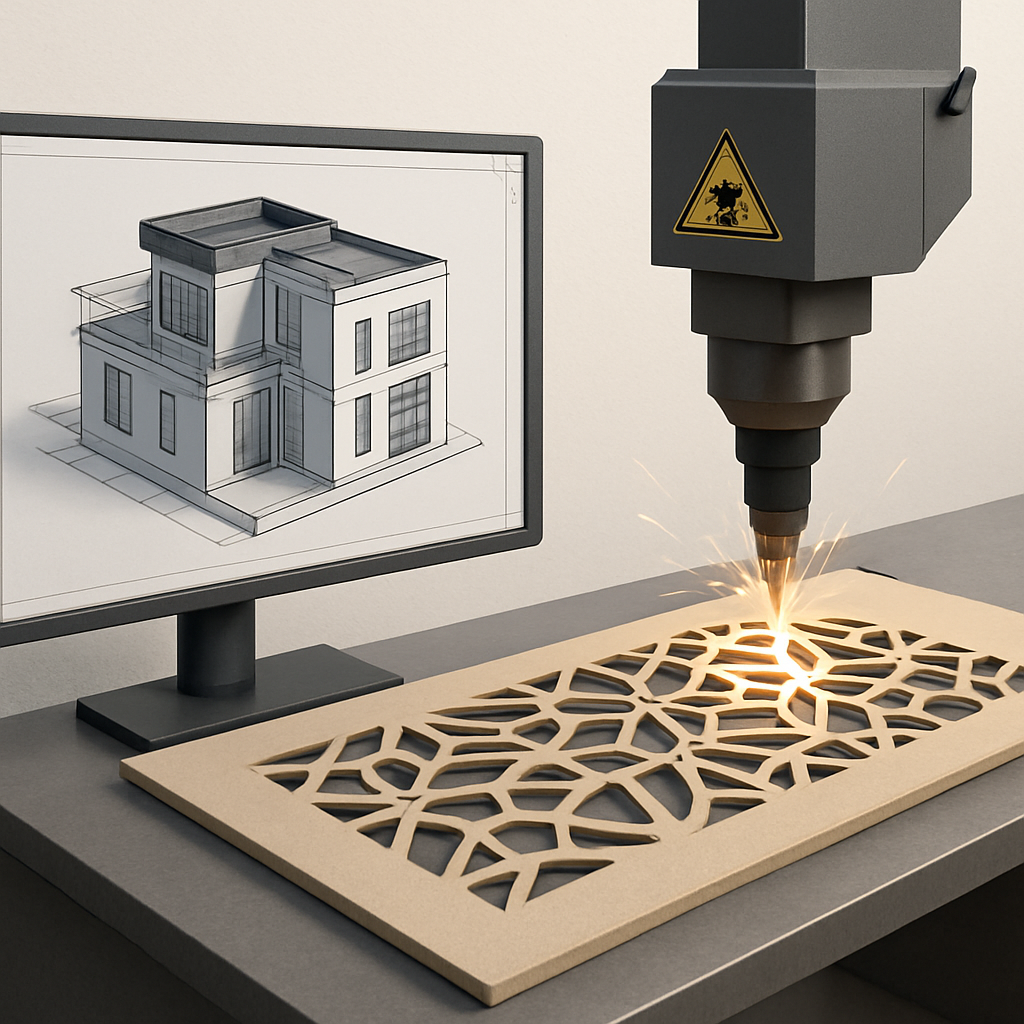
Why Use Revit for Laser Cut Exterior Walls?
If you’re looking to turn your architectural concept into an actual, laser-cut exterior wall, there’s really no tool quite like Revit. Sure, you can sketch by hand or whip up something in a simple CAD program, but with Revit’s parametric modeling, you’re in the driver’s seat. You can tweak, experiment, and even stress-test your wall panels in a virtual world that mimics reality in uncanny detail. It’s way more than just drawing lines; you’re basically building a digital prototype—an exact twin of what you’ll eventually cut—that lets you spot mistakes and make sure everything’s ready for fabrication before you even touch a sheet of metal. That means fewer errors, less wasted material (which, let’s be honest, always hurts the wallet), and the peace of mind that your creative vision survives intact from your computer screen all the way to the construction site.
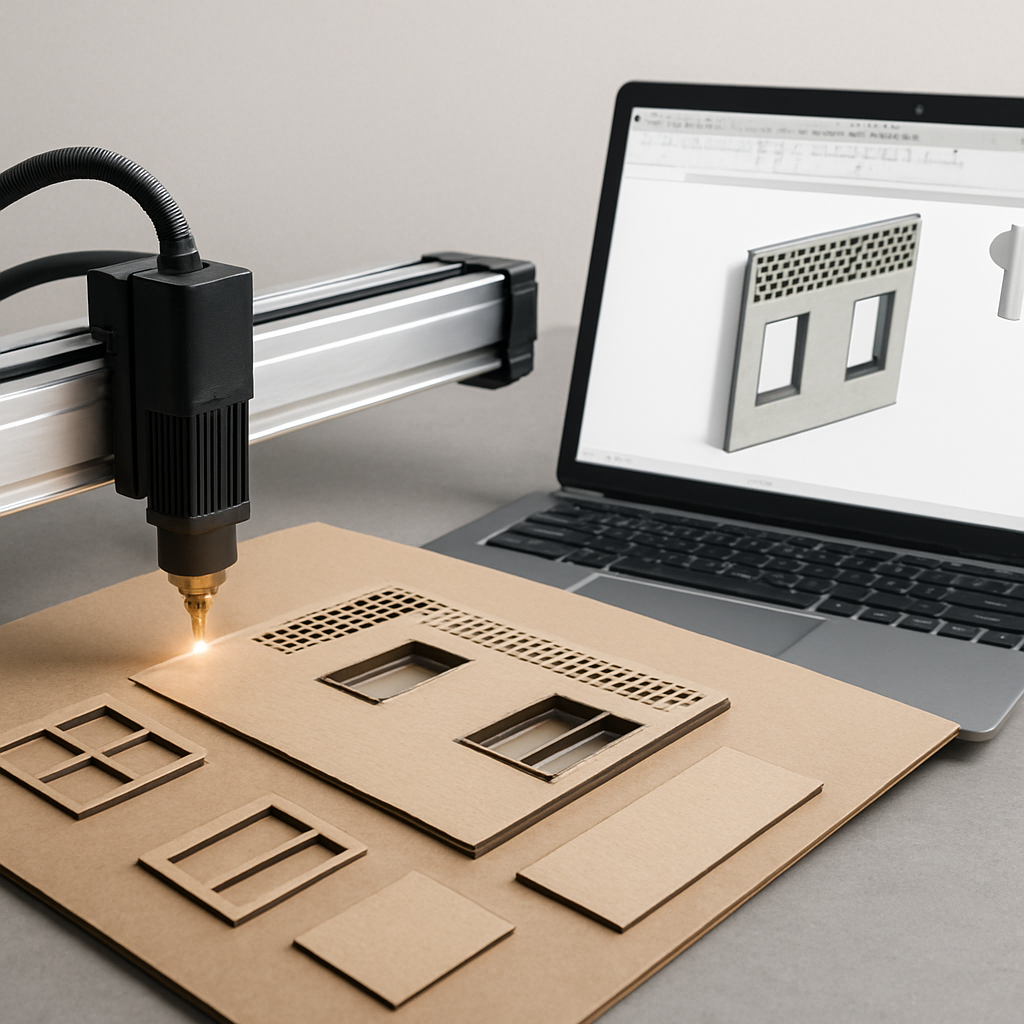
Now, if you’re new to this process, you might be thinking, “Why not just take my Revit design and send it straight to the laser cutter?” Unfortunately, it’s not quite that simple. Laser cutters are picky—they need precise vector paths and spotlessly clean geometry, usually in formats like DXF or SVG. Revit, on the other hand, is all about robust 3D modeling, so there’s a bit of a translation needed to bridge those two worlds. That’s why it pays to know how to set up your Revit model properly for fabrication. It’s not so much about being a computer wizard; it’s more about understanding what each tool does best, and how to get them to play nicely together.
These days, architects and designers—especially those who love experimenting with digital fabrication—are embracing Revit for far more than just blueprints or paperwork. Its ability to handle complex, intricate patterns and adaptive panels means you can push the envelope with your exterior wall designs. Whether you’re dreaming up geometric cladding, elaborate perforated screens, or a ventilated facade with a twist, using Revit right from the start means your ideas will look as good in real life as they do in your 3D model. But to get your design from Revit to the actual cutting table, you’ll want to plan ahead for things like material thickness, how your panels will connect, and even the quirks of the cutting process itself.
At the end of the day, making Revit your go-to digital foundation isn’t just about making things easier. It’s about building a repeatable, streamlined workflow—one where your design vision, the fabrication process, and the final installation all connect in a smooth, logical sequence. If you’ve ever seen a laser-cut panel return from the shop warped or with holes in the wrong place, you know firsthand how vital this connection is. By mastering the ins and outs of Revit-to-laser workflows, you’re setting yourself up for a project that’s not just creative, but also smooth, predictable, and—maybe most importantly—less stressful from start to finish.
Designing for Laser Cutting: What to Keep in Mind
Laser cutting is an awesome tool for precision, but it definitely comes with its own set of quirks. As you’re designing those exterior walls in Revit, there are a few practical realities to keep front and center. For starters, remember that laser cutters see lines differently than we do—closed polylines become cutouts, overlapping lines might mean the machine cuts twice in the same spot, and those tiny details you painstakingly added could just disappear into thin air. It’s tempting to go wild with intricate patterns, but if your lines are too close or your holes too tiny, you risk ending up with panels that are fragile or, worse, impossible to fabricate.
Another big consideration: what material are you actually cutting? Most exterior panels are made from metals like aluminum (classic), corten steel (very trendy), or various composites. Each material comes with its own set of rules about minimum cut widths and maximum sheet sizes, dictated both by what the laser can handle and what your supplier stocks. In Revit, it’s a smart move to model your panels using their real-world thickness and to draw your cutouts using detailed lines. This way, you can see at a glance what’s solid, what’s void, and you’ll have a much easier time when it’s time to send those files off to the shop for cutting.
Here’s another tip: plan out how your panels will actually attach to the building. Are you going with standoffs? Direct mounting? Maybe a rainscreen setup? The way you connect your panels will affect where you need to put in tabs, slots, mounting holes, or any other little details. Be sure to work these features into your Revit model right from the start, not as an afterthought. Otherwise, you might end up with mismatched pieces and a bunch of expensive do-overs. I’ve found it handy to create a template panel loaded with all the necessary cut features, then use Revit’s array or pattern tools to lay out the whole wall. This way, you can test out layouts and connections without losing track of how it’ll all go together in real life.
And don’t forget, not everything in your Revit project needs to wind up under the laser. Annotations, dimensions, or construction lines—keep those on separate layers or in hidden views. When it comes time to export, only send the geometry that you actually want cut. Trust me, this little bit of discipline saves a lot of back-and-forth with your fabricator and helps the entire process run much smoother.
Streamlining the Workflow: From Revit Model to Laser Cutter
Translating your Revit model into something a laser cutter can use isn’t just a one-click export—it’s a full workflow, with several steps that need a careful touch to make sure your digital design becomes a spot-on physical product. Start out by prepping your Revit views: isolate just the panels you want to fabricate, and use detail or drafting views to flatten your 3D creations into clean 2D outlines. A lot of folks rely on Revit’s Export to DWG feature for this, since DWG files are widely accepted by laser operators and usually get you that crisp linework you need.
But exporting is really only half the battle. Once you’ve got your DWG or DXF, I highly recommend opening it in something like AutoCAD—or even Illustrator if you’re feeling artistic—to double-check everything. This is your chance to clean up stray lines, join open paths, and set up the right layer colors or line weights. Some laser cutters are surprisingly fussy about these details; for example, they might treat different colors as cut or engrave commands. Make sure you know what your fabricator expects! If your design includes both cutting and engraving, use distinct colors or line types to keep everything organized. You can usually set this up in your Revit export, or tidy things up in your vector editing program afterward.
Don’t underestimate the importance of scale. It’s alarmingly easy to end up with a file that’s the wrong size, especially if you’re hopping back and forth between imperial and metric units. Before you send off your final file, print out a 1:1 scale version on paper and physically check that every tab, slot, and hole matches your intent. Fixing these things at this stage is infinitely easier (and cheaper) than discovering a misfit after you’ve burned through a pricey sheet of material.
If you’re tackling a big project with lots of unique panels, think about labeling or numbering each one directly in your vector file. Many fabricators can etch these IDs onto the back of the panels, which is a lifesaver during installation—no more guessing which piece goes where! And if you’re using parametric designs that churn out dozens or even hundreds of unique panels, consider using scripting tools or Dynamo inside Revit to automate the process. It keeps things consistent and saves you from hours of repetitive, error-prone exporting.
Common Pitfalls and How to Avoid Them
Bringing a laser-cut exterior wall from your Revit model to reality is super rewarding, but it’s not without its headaches. One of the most common slip-ups is underestimating the minimum cut sizes your material and the laser can actually handle. A pattern that looks mind-blowing on your screen might translate into delicate slivers that are too fragile to survive fabrication—or, frustratingly, parts of your design might not be cut at all. Always check in with your fabricator about minimum gaps, radii, and feature sizes for your chosen material. Then go back to your Revit design and adjust as needed. A five-minute call can save you days of revisions.
Kerf—the width of material that the laser removes as it cuts—is another gotcha that trips people up. It might seem tiny, but if you’re working with tight-fitting joints, tabs, or interlocking panels, even a small kerf can mean the difference between a snug fit and something that rattles around. Some advanced Revit users model the kerf right into their designs by offsetting lines accordingly. At the very least, ask your fabricator if they factor in kerf on their end, and make sure you’re both on the same page before production starts. Nothing derails a project like a beautiful, unbuildable puzzle of panels.
Miscommunication with your fabricator is another classic pitfall. Even if your Revit model is a work of art, if your exported files are missing layers, have confusing line types, or don’t include all the outlines, you’re likely to face delays or rework. Always annotate your files with clear instructions: which lines are for cutting, which are for engraving, and which should be ignored. Whenever possible, build a good working relationship with your fabricator—ask for a test cut before committing to the whole batch. I’ve found that taking the time to review a sample together pays off in fewer surprises down the road.
And let’s not forget about building codes and the elements. Laser-cut exterior panels aren’t just for looks; they have to deal with wind, rain, temperature swings, and sometimes even meet fire or structural codes. While Revit can help you visualize and document these factors, be sure to coordinate with engineers or consultants to make sure your panels are safe, durable, and up to code. A beautiful facade isn’t much good if it can’t survive a storm or pass inspection.
Fresh Perspectives: Creative Opportunities and Future Trends
Laser cutting really is a gateway to creativity with exterior walls—and not just for standard perforated screens. When you use Revit as your design platform, you can play with parametric patterns, adaptive components, and even generative geometry that would be nearly impossible to manage by hand. Picture designing a facade that shifts its pattern to respond to the angle of the sun, casting playful shadows throughout the day, or one that tells a visual story unique to each project through its cut shapes.
One approach I don’t see often enough involves mixing laser cut panels with other digital fabrication methods. Imagine using Revit to orchestrate a wall that combines laser-cut metal, CNC-milled wood, and even 3D-printed connectors—all working together as one cohesive system. Thanks to Revit’s multidisciplinary tools, you can assign materials, simulate assembly right there in your model, and embed metadata so fabricators always know exactly what goes where. Coordination becomes smoother, and the odds of a costly mistake drop dramatically.
Looking ahead, digital fabrication is only getting more automated and personalized. Tools like Dynamo for Revit let you develop generative facades that react to everything from sunlight to client branding, automatically laying out unique panels for each project. This new level of customization means architecture can be both functional and one-of-a-kind. And with growing emphasis on sustainability, you might find yourself specifying recycled metals, designing for easy disassembly, or even integrating solar panels directly into your laser-cut walls. The options are expanding every year.
So if you’re thinking about diving into a laser cut exterior wall project, keep in mind—the intersection of Revit and digital fabrication is still very much a frontier. Stay open to new plugins, workflows, and creative techniques. Don’t be afraid to experiment or shake up old conventions. Who knows? Your next design might just set a new standard for what’s possible when technology and creativity meet at the building’s envelope.


