
 Set for Student Project
 Lecture Note
 Lecture Video
 Activity
 Assignment
 Design Project
 Quiz & Exam

Exporting Revit Roofs for Laser Cutting: A Detailed Starter Guide

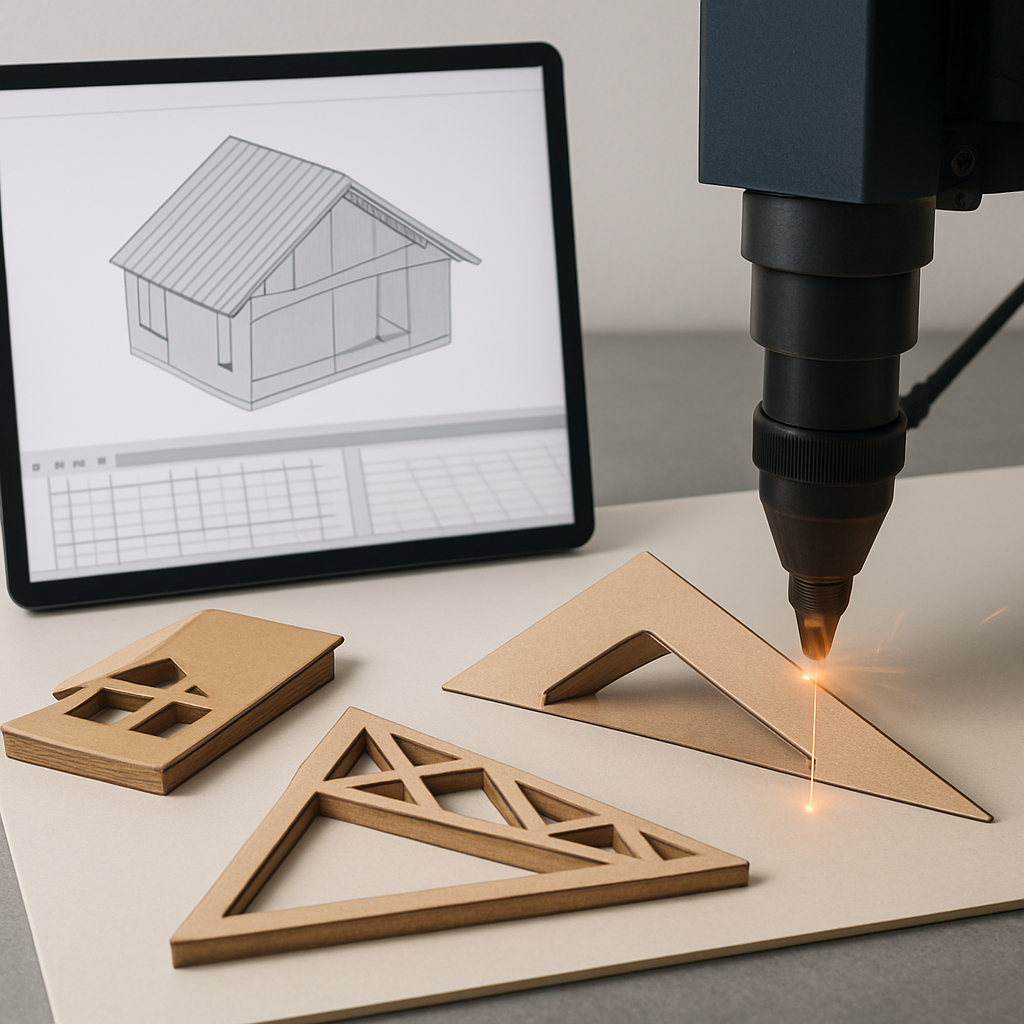
To create laser cut roof components from Revit, you must prepare your roof geometry, export the correct 2D vector drawings (often as DXF or DWG), and optimize them for laser cutting. This workflow includes flattening 3D elements, adjusting details for fabrication, and ensuring scale and layer settings are suitable for your laser cutter.
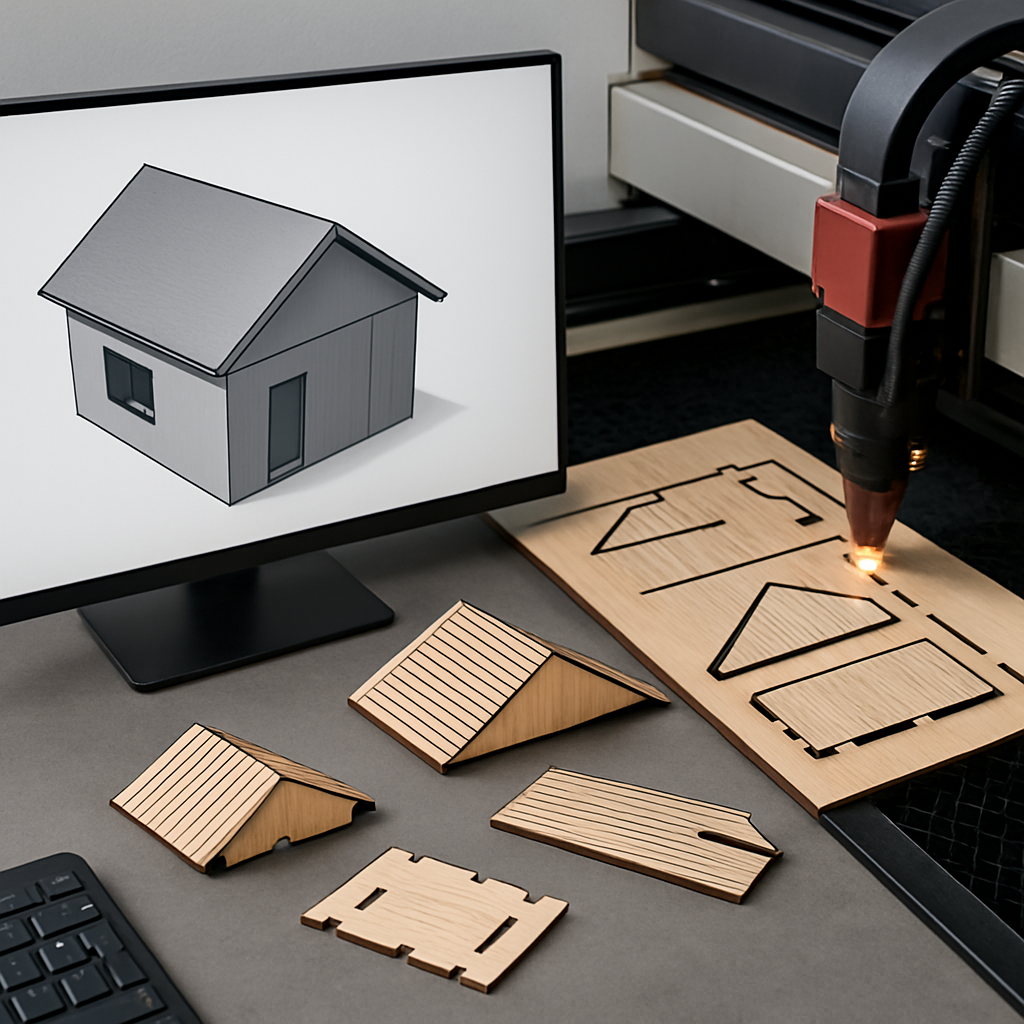
How Do You Prepare Roof Geometry in Revit for Laser Cutting?
Start by isolating the roof components you want to fabricate. In Revit, use the Visibility/Graphics Overrides to hide everything except your roof. This step is essential to avoid exporting unwanted elements that could interfere with laser cutting, such as walls, furniture, or grid lines. Use the ‘Filter’ tool to further refine what is visible in your view, ensuring only the necessary roof elements remain.
Ensure the roof is modeled accurately and at the correct scale. If your roof model is derived from a conceptual mass or is part of a complex assembly, double-check that its thickness and overhangs match your intended physical model. Use Revit’s measurement tools to verify all dimensions. For example, in architectural models where the final product will be a scaled-down representation, confirm that scaling factors are applied consistently so that all elements fit together upon assembly.
If your model includes complex or multi-layered roofs, consider using Revit’s ‘Split’ and ‘Edit Profile’ tools to break the roof into manageable, flat pieces suitable for laser cutting (Autodesk: Roofs). For instance, a butterfly or folded plate roof might require you to divide the surface into several panels, each of which can be cut from flat material and then assembled in three dimensions. Use ‘Edit Profile’ to adjust the perimeter or add cutouts for skylights, chimneys, or roof penetrations.
For laser cutting, all geometry must be 2D outlines. Use Revit’s plan, section, or elevation views to generate accurate representations of each roof part. For example, a flat roof can often be represented with a simple plan view, but a pitched or curved roof may require elevation or section views to properly capture the shape of each segment. If your roof includes overhangs or variable thicknesses, create detail lines to clarify cut lines and fold lines for assembly. These lines serve as guides for where to score, fold, or join pieces during model construction. In Revit, use the ‘Detail Line’ tool to manually trace any custom geometry not captured in standard views.
Clean up the view by removing annotations, dimensions, and unnecessary detail elements. Annotations such as text, dimensions, or section markers can create confusion and clutter in the exported file, leading to potential mistakes in the laser cutting process. Before exporting, switch to a ‘clean’ view template or manually hide these items, ensuring the only lines that remain are those essential for cutting and assembly.
It is also a good practice to assign clear naming conventions to your roof components in Revit before export. For example, name each piece according to its intended location or sequence in the assembly (e.g., “Roof_Panel_1_Front”, “Roof_Slope_Left”). This will be invaluable during post-processing and assembly, as it minimizes mistakes and reduces time spent matching physical parts to digital drawings.
What Is the Step-by-Step Export Process from Revit to Laser Cutter-Ready Files?
- Set Up Your View: Choose a plan or elevation view that best displays the roof geometry as a flat outline. Duplicate the view and hide all non-essential elements. For complex roofs, you might need to create multiple views—one for each unique panel or angle. Make sure to use the ‘Crop Region’ tool to focus tightly on the portion of the roof you intend to export. This not only reduces file size but also avoids confusion later in the workflow.
- Draft Cut Lines: Use Detail Lines to trace cut and fold lines if needed, ensuring every element you want cut is represented as a continuous polyline. For example, if your roof design involves a fold line where two panels meet, use a dashed line style to indicate a score or fold rather than a full cut. This is especially important for materials like thin plywood, acrylic, or cardstock, which can be folded or bent after scoring. When tracing, zoom in to ensure lines are perfectly joined at corners—this prevents open paths in the exported file.
- Scale the View: Make sure the view is set to the desired scale (typically 1:50 or 1:100 for architectural models). Double-check sheet size and scaling settings in the view properties. If your laser cutter has a maximum bed size (e.g., 600mm x 400mm), place a reference rectangle in your view to confirm that all roof components will fit on your stock material. Print a test PDF from Revit to verify scaling before exporting to CAD formats.
- Export as DWG/DXF: Go to File > Export > CAD Formats > DWG or DXF. In the export dialog, select the current view only, and under export setup, confirm that layers and line weights are mapped correctly. Use the ‘Modify Export Setup’ feature to create custom layer assignments if necessary—for example, mapping solid cut lines to “ROOF_CUT” and dashed fold lines to “ROOF_FOLD”. Set the export units to match your laser cutter settings, usually millimeters. If you plan to use color coding (e.g., red for cuts, blue for etches), assign these in the export dialog as well.
- Open and Clean in Vector Software: Use vector editing software like AutoCAD or Adobe Illustrator to open the exported file. Clean up stray lines, verify closed paths, and color-code layers if your laser cutter recognizes different operations (cut, etch). For instance, in AutoCAD, use the ‘OVERKILL’ command to delete duplicate lines and ‘JOIN’ to ensure polylines are closed. In Illustrator, use the ‘Pathfinder’ tool to unite shapes and the ‘Layers’ panel to organize different operations. Check for any residual elements from Revit, such as title blocks or crop boundaries, and delete them.
- Save as Laser Cutter Format: Export the final drawing as a DXF, SVG, or the file type your laser cutter software requires. Some cutters work best with older DXF versions (e.g., R12), so check your machine’s documentation. Before final export, run a ‘preflight’ check in your vector software: verify all lines are the correct color and thickness, all shapes are closed, and the file is sized to your material stock. Save a backup copy in your editing software’s native format (e.g., .AI for Illustrator, .DWG for AutoCAD) before exporting the final laser-ready file.
Throughout this process, it’s important to keep both digital and physical workflows in mind. For example, after exporting and cleaning your files, consider printing a paper template at full scale to test fit the pieces before committing to a material cut. This can catch issues such as misaligned joints or oversized components that might not be evident on screen.
In more advanced workflows, you may use plugins or scripts to automate parts of this process, especially when exporting multiple roof panels or dealing with repetitive geometry. Revit add-ins like ‘ExportLayers’ or Dynamo scripts can help assign layers and manage exports in bulk, further streamlining the preparation for laser cutting.
What File Types and Export Settings Work Best for Laser Cutting Roof Components?
Laser cutters typically require 2D vector files such as DXF, DWG, or SVG. DXF is the most universally supported format, especially for architectural model making, due to its compatibility with both CAD software and most laser cutter controllers. For example, Glowforge, Epilog, and Trotec laser cutters all accept DXF or SVG files, while some hobbyist machines may have proprietary requirements.
- Line Weights: Assign different line weights or colors to indicate cut and etch lines. For example, red for cuts and blue for etching. Some laser software (such as RDWorks or LightBurn) allows you to assign laser power and speed settings based on line color. By using a standardized color-coding system, you can quickly switch between cutting and engraving operations without having to manually adjust settings for each line.
- Layers: Organize export layers logically (e.g., “ROOF_CUT”, “ROOF_FOLD”). This helps in post-processing and in the laser cutter software. For complex assemblies, consider additional layers for scoring, engraving, or labeling parts. In AutoCAD, you can freeze or isolate layers to check each operation before final export.
- Units: Ensure units match your material stock and laser cutter settings (millimeters are common). Double-check unit settings in both Revit and your vector software to avoid scaling mismatches. As a practical example, if your material is 3mm plywood and your design is exported in inches, the resulting cut parts may be drastically oversized or undersized, leading to wasted material and time.
- Flatten Geometry: Export only 2D views—no 3D elements, as most cutters can’t interpret 3D geometry. This means avoiding shaded or perspective views, and ensuring all lines lie on the same plane. If your design requires compound curves or angled joints, break these down into flat facets or use ‘Unfold’ tools in vector software to approximate the correct shape.
When exporting files, be mindful of the version compatibility. Some older laser cutters may only accept certain versions of DXF (e.g., AutoCAD 2004 or earlier). In such cases, use the ‘Save As’ function in your vector software and select the appropriate version. Always run a test import of your file into the laser cutter’s software to verify that all geometry appears as expected, and no lines are missing or misinterpreted.
If you need a refresher on preparing other building elements, you may find this guide to laser cut exterior walls from Revit helpful for comparison.
Another practical tip is to maintain a template file with your preferred layer structure, colors, and export settings. This not only saves time on future projects but also helps maintain consistency, especially if you’re working as part of a team or producing multiple models for a single project. Document your settings—such as which color corresponds to which laser operation—and share them with collaborators to minimize confusion and errors.
What Are Common Challenges and How Can You Troubleshoot Them?
Beginners often encounter issues such as missing lines, scaling errors, or unjoined polylines in exported files. These issues can lead to incomplete cuts, wasted material, or models that do not fit together during assembly. Below are solutions to frequent problems encountered in the workflow:
- Missing Lines: Ensure all required detail lines are visible in the chosen view before export. Check that no layers are accidentally hidden. In Revit, use the ‘Reveal Hidden Elements’ tool to make sure nothing essential is suppressed. In your vector editor, confirm that all expected layers are present and that no lines have been inadvertently placed on ‘non-printing’ or invisible layers.
- Scaling Problems: Always confirm the scale in Revit and match it when opening the file in vector software. Use a reference line or square to double-check dimensions. For example, draw a 100mm x 100mm square in Revit and verify that it measures exactly the same in AutoCAD or Illustrator after export. If discrepancies are found, adjust the import or scaling settings before proceeding. Some software will default to inches rather than millimeters—always verify units at each step.
- Open Paths: Use vector software to join or close open polylines, as laser cutters require closed shapes for cutting. In AutoCAD, use the ‘PEDIT’ command to join lines into closed polylines; in Illustrator, use ‘Join’ (Cmd/Ctrl+J) to close open ends. Unclosed paths can cause the laser cutter to skip sections, resulting in incomplete parts.
- Line Duplication: Delete duplicate or overlapping lines in your vector editor to prevent double cuts. Double cuts can not only waste time but also burn or char the material, reducing the quality of the finished piece. Use the ‘Select Duplicate Objects’ function or a plugin if available; in AutoCAD, ‘OVERKILL’ is particularly useful for cleaning up overlapping vector data.
Other challenges may include incorrect line colors (causing the cutter to use the wrong power/speed), stray points or artifacts from Revit’s export process, or non-manifold paths where lines cross but do not form a closed loop. These can all be corrected in the vector editing stage. Always perform a visual check and, if possible, a test cut on scrap material before proceeding with your final stock.
For more troubleshooting tips on model-to-fabrication workflows, explore laser cutting floor plates from Revit.
Another common pitfall occurs when working with layered or multi-material roofs: forgetting to account for the thickness of each layer when exporting outlines. This can cause misalignments in the assembled model. Always include a cross-section or exploded view in your working files to double-check the fit and overlap of each component before cutting.
If you encounter persistent problems, consider exporting a small test piece—such as a single roof panel with all intended cut and etch lines—before committing to a full sheet. This allows you to confirm that all settings, layers, and file formats are correct and that your laser cutter interprets the file as intended.
How Do You Optimize Roof Components for Assembly and Material Efficiency?
Efficient roof component design minimizes waste and simplifies assembly:
- Nesting: Arrange parts closely on the digital sheet to reduce material waste. Most vector editors have nesting features or plugins. For example, in Illustrator, you can manually rotate and position parts, or use a plugin like ‘Nesting’ for automatic optimization. In AutoCAD, scripts or third-party tools can automatically pack parts with minimal gaps. Good nesting can reduce material usage by as much as 30%, especially with irregularly shaped panels.
- Tab and Slot Design: Add tabs and slots for easier assembly if your roof has multiple interlocking parts. For example, a pitched roof model may use interlocking tabs at the ridge and eaves to precisely align parts without glue. When designing tabs and slots, compensate for material thickness—if you’re using 3mm acrylic, make slots 3.1mm wide for a snug fit. Consider the kerf (width of material removed by the laser), and adjust dimensions accordingly. Test a sample tab and slot on scrap material to ensure proper fit before applying to all parts.
- Numbering: Etch numbers or labels onto each part to identify them during assembly. This is especially useful for complex roofs with many similar-looking pieces. Use your vector editor to place text on a separate ‘etch’ layer, and assign a lower power/speed in your laser cutter for engraving rather than cutting. For example, label each piece as “R1”, “R2”, etc., and include a key or assembly diagram in your documentation.
- Material Thickness Compensation: Adjust cut paths to account for the thickness of your model material, especially for joints and overlaps. If two roof panels meet at an angle, offset the join line to ensure a flush fit. For layered assemblies, stagger the cut lines to avoid stacking errors. If possible, use a parametric design tool or spreadsheet to calculate adjusted dimensions automatically for different materials and thicknesses.
| Optimization | Benefit |
|---|---|
| Nesting | Reduces material usage and cost |
| Tabs & Slots | Speeds up and simplifies assembly |
| Labeling | Improves accuracy during model building |
| Thickness Adjustment | Ensures snug, accurate fit of parts |
By following these steps and best practices, you can reliably create laser cut roof components from your Revit models, ensuring accurate fabrication and efficient assembly.
As a final tip, document your workflow for future reference. Keep notes on material settings (power, speed, focus), file organization, and assembly order. Take photos during the assembly process and annotate them for future users or team members. This will not only streamline your next project but also help colleagues or clients understand the process and avoid repeating common mistakes.
In summary, successful laser cutting from Revit involves careful preparation in the modeling environment, precise export and cleanup of vector files, and thoughtful optimization for assembly and material efficiency. The more attention you pay to each stage—especially to details like scaling, layer organization, and physical assembly constraints—the higher the quality and reliability of your finished roof components will be.
Frequently Asked Questions About Laser Cutting Roofs from Revit
Can I export 3D roof shapes directly for laser cutting?
No, laser cutters work with 2D vector outlines. You must flatten 3D roof geometry to 2D views or develop unfolded patterns before exporting.
What if my roof has complex curves or angles?
For curved or sloped roofs, use section or elevation views to extract true shapes. You may need to manually trace or develop unfolded patterns for compound curves.
How do I ensure the exported file is to scale?
Verify the scale in Revit before export, and check dimensions in your vector software using a reference line or known measurement.
Which materials work best for laser cut architectural roofs?
Common choices include acrylic, plywood, and cardboard. Material choice depends on model scale, required strength, and laser cutter specifications.
Do I need special software besides Revit?
A vector editing tool (such as AutoCAD or Illustrator) is recommended to clean up exported files and prepare them for your specific laser cutter.


