
 Set for Student Project
 Lecture Note
 Lecture Video
 Activity
 Assignment
 Design Project
 Quiz & Exam

Step-by-Step Workflow: Creating Laser Cut Interior Walls Directly from Revit

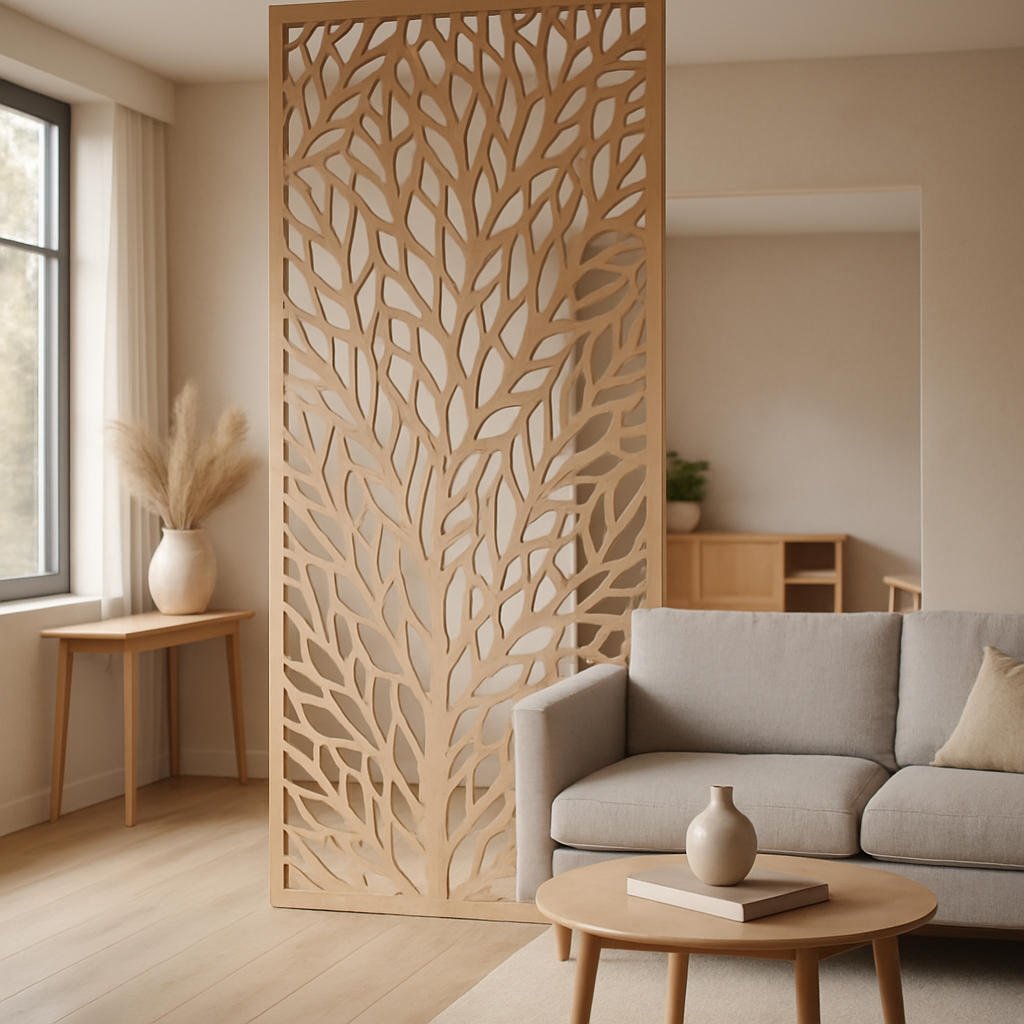
To create laser cut interior walls from Revit, start by modeling your interior walls precisely, export the relevant views as DWG or DXF files, and refine these vector files in software like AutoCAD or Illustrator to meet laser cutter requirements. This workflow ensures your digital Revit walls are ready for accurate laser fabrication.
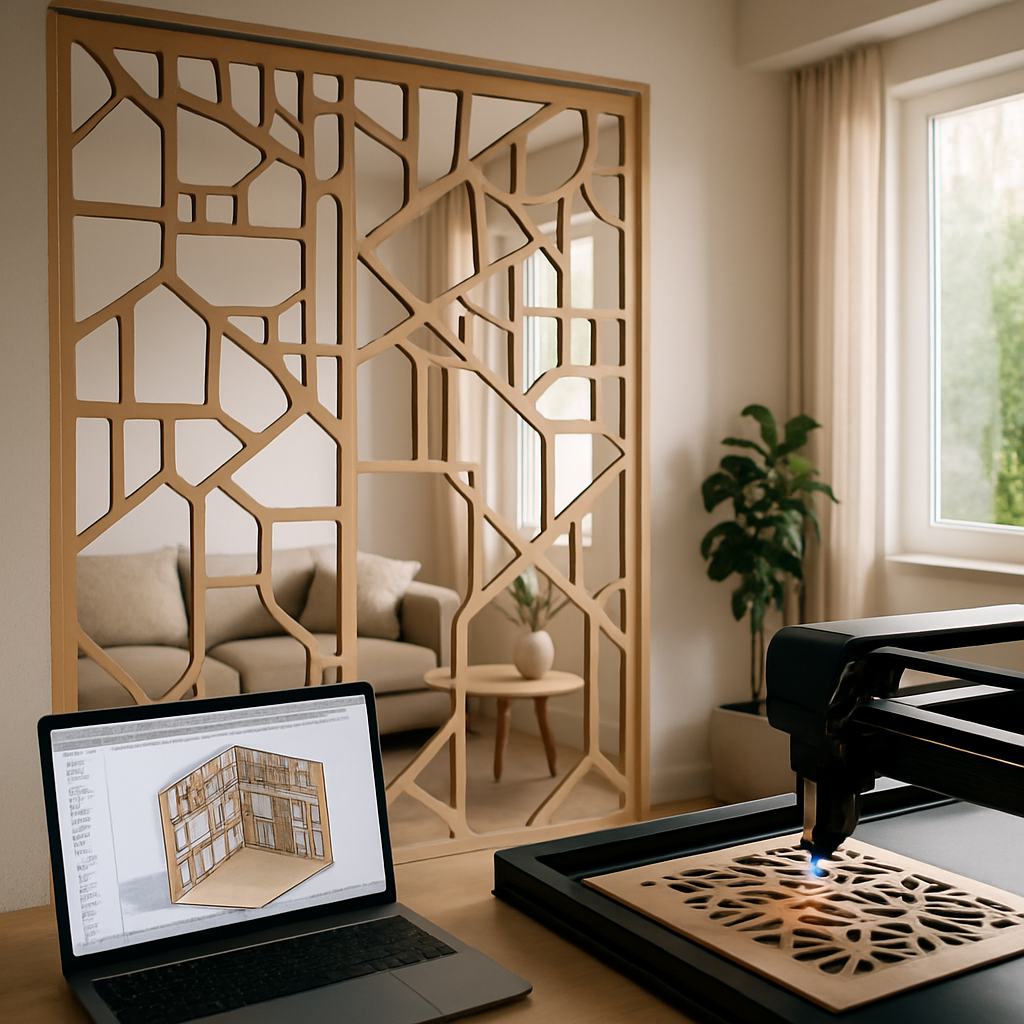
What are the key steps for creating laser cut interior walls from Revit?
- Model Clean Interior Walls in Revit: Use accurate wall thicknesses, heights, and window/door placements. Simplify details that will not be visible or practical at scale.
- Prepare the Export View: Create a plan or elevation view focused on the walls you want to laser cut. Use detail levels and view filters to remove unnecessary elements like furniture, annotations, or MEP systems.
- Export as Vector (DWG/DXF): Use the Revit export function to save your view as a DWG or DXF file, which are standard formats for laser cutting workflows.
- Refine in Vector Editing Software: Open the exported file in AutoCAD, Illustrator, or similar. Clean up linework, join open paths, and adjust line weights or colors to indicate cut, engrave, or score operations as needed by your laser cutting service.
- Scale and Arrange Parts: Ensure your drawing is at the correct model scale (e.g., 1:50 or 1:100). Nest wall parts efficiently within your material sheet size to minimize waste.
- Finalize for Laser Cutting: Export the cleaned, arranged vector drawing in the format required by your laser cutter (commonly DXF or AI). Double-check layer colors and line types for fabrication instructions.
Step-by-step workflow: Begin by ensuring that your Revit model is as accurate as possible, especially in the areas relevant to the laser cut. For instance, if you are creating a physical model at 1:50 scale for a presentation, make sure all wall thicknesses are scaled down appropriately and that openings for doors and windows are precisely positioned. Use reference dimensions and double-check against your floor plans to avoid discrepancies that might lead to misaligned pieces during assembly.
When preparing your export view, use Revit’s visibility/graphics overrides to switch off categories not required for fabrication. For example, if your laser cut walls do not need electrical outlets or HVAC grilles, hide these elements. You may find it useful to create a dedicated view template for laser cutting, streamlining the process for future projects. Set the detail level to ‘Medium’ or ‘Fine’ depending on the complexity of your project. Remember, too much detail can overcomplicate the laser cut and result in unnecessary engraving or confusing outlines.
After exporting your view as a DWG or DXF, import the file to a vector editing program such as AutoCAD, Rhino, or Adobe Illustrator. Here, focus on cleaning the file: remove stray lines, delete extraneous annotations, and ensure all wall outlines are closed polylines. For example, if your file contains window mullions or door swings, remove these unless they are part of the cut. Join lines where Revit may have left small gaps or overlaps, as open paths can create errors or incomplete cuts. If your laser cutter distinguishes between cut and engrave by color or line weight, assign these attributes now. For example, use red for cutting, blue for scoring, and black for engraving—always confirm your laser cutter’s requirements, as conventions vary.
Once your vector file is clean, scale your drawing precisely. Some laser cutting shops require files at a 1:1 scale for the intended output size. For example, if your material is a 600mm x 400mm acrylic sheet, arrange all wall parts within this boundary. Use nesting strategies to reduce material waste: rotate and position pieces closely without overlapping. In Illustrator, the Artboard can represent your material size, while in AutoCAD, use a reference rectangle. Efficient nesting can save material and reduce cost, especially for larger projects with many wall segments.
Before exporting your final file, verify that all settings match your laser cutter’s specifications. Double-check layer assignments, line colors, and line types. Save the file in the format your fabricator prefers, usually DXF or AI. If possible, run a simulation or preview in the laser cutter’s software to catch any potential issues before committing to material. For example, some shops will provide a screenshot of the laser path, allowing you to spot missed cuts or unintended engravings.
How do you optimize Revit models specifically for laser cutting interior walls?
Optimizing Revit models for laser cutting requires simplifying geometry and focusing on features that will translate well to physical materials. Avoid complex wall joins or intricate details that are too fine for the laser cutter or the chosen material thickness. For doors, windows, or openings, represent only the cutout shape and ignore hardware or trim. If you intend to assemble the walls into a scale model, consider adding tabs, slots, or alignment marks directly in the vector file after export to facilitate assembly.
For example, if your interior walls feature baseboards, cornices, or detailed trim, these should be omitted from the Revit model or, at the very least, excluded from the export view. Attempting to laser cut such fine details can result in fragile parts that break easily or are not even resolved by the laser. Instead, focus on the essential outlines and any openings that need to be represented as physical voids. When modeling windows and doors, only the perimeter of the opening should be included; extraneous details like door swings, handles, or mullions should be omitted unless they serve a structural or assembly function in your model.
If your design includes intersecting walls or complex geometry, consider simplifying these junctions to right angles or well-defined slots to aid assembly. For example, a T-junction between two walls can be represented as a straightforward tab-and-slot joint, making the assembly more robust and easier to fabricate. Maintain a consistent wall thickness throughout the model, reflecting the actual material you plan to use (such as 3mm plywood or acrylic). This consistency not only aids laser cutting accuracy but also ensures that parts will fit together as expected.
Another optimization is to add reference marks or numbers to each wall segment. These can be engraved lightly on the material to facilitate assembly, especially for large or complex models with many similar parts. For example, a small reference number or notch can indicate which wall segment aligns with which floor or ceiling piece. This is especially helpful in architectural models where multiple rooms or levels are represented and parts could otherwise be confused during assembly.
Lastly, consider the orientation of wood grain or acrylic finish in your nesting layout. For instance, if you want all interior wall surfaces to display vertical grain, orient your wall outlines accordingly in your vector editor. Small details like this can enhance the realism and quality of your final model, especially in professional or client-facing presentations.
Which export settings in Revit ensure clean, accurate vector files for laser cutting?
| Export Setting | Recommended Option | Why It Matters |
|---|---|---|
| Export Format | DWG or DXF | Widely accepted by vector editors and laser cutters |
| Detail Level | Medium or Fine | Captures necessary wall geometry without excessive detail |
| View Filters | Turn off non-essential categories | Reduces cleanup needed in vector editor |
| Layer Mapping | Custom, if possible | Assign unique layers for cut, engrave, score lines |
| Units & Scale | Match final model scale | Prevents scaling errors in fabrication |
To ensure your exported files are as clean as possible, it is crucial to configure Revit’s export dialog carefully. For export format, always use DWG or DXF, as these are universally accepted by vector editors and most laser cutters. PDF exports can sometimes be converted, but frequently result in broken paths or rasterized elements, which are unsuitable for accurate laser cutting. When selecting the detail level, ‘Medium’ is typically sufficient for most wall outlines, but ‘Fine’ may be necessary for models with curved or angled walls to accurately capture the geometry. However, avoid ‘Fine’ on overly detailed models, as this can introduce unnecessary linework that must be cleaned up later.
Utilize view filters aggressively. For example, create a custom filter that hides all categories except ‘Walls’ and ‘Openings.’ This means no furniture, no plumbing fixtures, no annotation. The fewer extraneous objects in your export, the less time you will spend in cleanup. In complex models, you might consider creating dedicated worksets or design options just for elements that need to be included in the laser cut export. This allows you to quickly isolate and export only the relevant geometry.
Layer mapping is another key consideration. Many laser cutters use layer color or name to differentiate between cut, engrave, and score operations. In Revit’s export settings, you can create a custom layer mapping table that assigns all wall cut lines to a ‘CUT’ layer (perhaps colored red), while engrave lines go to an ‘ENGRAVE’ layer (colored blue). This saves significant time in vector editing and reduces the chance of error. For example, if you want windows to be scored but not fully cut, assign those outlines to a distinct layer during export. Always confirm the requirements with your laser cutting vendor, as layer and color conventions can differ.
Finally, always confirm units and scale before exporting. If your physical model will be built at 1:50, ensure your vector file reflects this so that wall thicknesses and opening sizes are correct when cut. Some users prefer to export at 1:1 and scale in their vector editor, but this introduces risk of error. It is best to maintain correct scale throughout your workflow. Before sending files to the laser cutter, use the ‘Distance’ or ‘Measure’ tool in your vector editor to check key dimensions, such as overall wall length or a typical door width. This quick check can catch scaling issues before they result in wasted material.
What are common pitfalls when preparing Revit interior wall files for laser cutting?
- Incomplete or Open Paths: Laser cutters require closed loops for cut lines. Check and join any broken wall outlines in your vector file.
- Overlapping Lines: Duplicate or intersecting lines can cause double cuts or errors. Remove unnecessary overlaps during vector cleanup.
- Incorrect Scaling: Exporting at the wrong scale results in walls that are too large or too small. Double-check your units and scale both in Revit and your vector editor.
- Line Weight/Color Issues: The laser cutter typically interprets line color or layer to distinguish between cutting and engraving. Ensure your lines are correctly assigned.
- Ignoring Kerf: The width of the laser cut (kerf) can affect fit and detail; compensate by adjusting wall outlines if a precise fit is needed.
Incomplete or open paths are among the most common issues in laser cutting preparation. For example, if a wall outline is made from several disconnected lines or polylines, the laser may not complete the cut, resulting in uncut sections or pieces that won’t separate from the material. Use the ‘Join’ or ‘Close Path’ tools in your vector editor to ensure all outlines are continuous. In AutoCAD, commands like ‘PEDIT’ (Polyline Edit) and ‘JOIN’ are extremely helpful for this cleanup.
Overlapping lines can cause the laser to pass multiple times over the same area, potentially burning or melting the material. For example, if two wall outlines overlap at a corner, the laser may linger, causing excessive charring or even fire risk. Use the ‘Overkill’ command in AutoCAD or ‘Pathfinder > Unite’ in Illustrator to merge overlapping vectors. Always review intersections and corners for duplicate geometry.
Incorrect scaling is a costly mistake, often resulting in parts that do not fit or match the intended model size. For example, exporting at full scale instead of 1:100 could result in walls that are too large for your material or assembly. Always double-check your drawing scale before and after export. In your vector editor, use the measure tool to confirm that a typical door opening is the correct width (e.g., 9mm wide for a 900mm door at 1:100 scale).
Line weight or color issues arise when the laser cutter cannot differentiate between cut and engrave operations. For example, if all lines are black by default, the cutter may engrave everything rather than cutting through the material. Assign distinct colors and layers for each operation, and provide a legend or key with your file to communicate your intentions to the fabricator. For multi-operation models, such as those requiring both through-cuts and surface engravings (for detailing or reference marks), layer management becomes even more important.
Ignoring kerf can result in wall segments that are too loose or tight. The kerf—the width of material removed by the laser—varies by machine and material, typically between 0.1mm and 0.3mm for architectural model materials. For example, if you are using 3mm plywood and the laser kerf is 0.2mm, slots for joining walls should be drawn at 3.2mm to ensure a snug fit. Test cuts are essential: run a small sample before committing to the full job, and adjust your outlines as needed. In professional workflows, designers often create a ‘kerf compensation’ offset in their vector editor, expanding or contracting paths to account for the laser’s actual cut width.
How do you add assembly features (tabs and slots) for laser cut interior walls?
To make assembly easier, add tabs, slots, or interlocking features after exporting from Revit. Use a vector editor like AutoCAD or Illustrator to draw tabs and slots at wall junctions. Their size depends on your material thickness and the laser kerf. A common approach is to make the slot width equal to the material thickness plus a small allowance for the kerf (e.g., 3mm material, 0.1mm kerf: slot width = 3.1mm). Test fit with scrap material to perfect your dimensions before final fabrication.
In practice, tabs and slots are critical for assembling laser-cut architectural models. For instance, if you are creating a room box model, you might add vertical slots at the base of each wall segment, aligning with corresponding tabs on a floor plate. This ensures all walls stand upright and are accurately positioned. Use your vector editor’s rectangle, line, and snap tools to precisely position these features. For right-angle wall intersections, create slots at each junction, offsetting them to avoid interference. In multi-level models, consider adding staggered tabs to prevent walls from wobbling or shifting after assembly.
To determine tab and slot dimensions, measure your material’s actual thickness with calipers, as stated thicknesses (e.g., “3mm plywood”) can vary. If the measured thickness is 2.9mm and the kerf is 0.1mm, make your slot 3.0mm wide for a snug, friction-fit assembly. If you want a looser fit for easy disassembly, increase the allowance slightly. Additionally, consider the length and spacing of tabs; longer tabs provide more stability, but closely spaced tabs can weaken the material along the slot line. A typical practice is to make tabs 10–15mm long, spaced 20–30mm apart, but this depends on your specific wall heights and model scale.
For more complex assemblies, such as curved walls or intersecting planes, use parametric design tools or scripts to automate tab and slot generation. In Rhino, plugins like Grasshopper can automate this process, allowing for rapid iteration and precise control. For example, you can script a series of slots along a curved wall’s base to match a contoured floor plate, ensuring perfect alignment even in non-orthogonal models.
Before finalizing your design, run a test cut on scrap material. Assemble the pieces to check fit and function, making note of any areas that are too tight or loose. Adjust your vector drawings as needed based on these results. Some designers prefer to slightly chamfer or round the corners of tabs to ease assembly and reduce the risk of chipping brittle materials like MDF or acrylic. Finally, when exporting your final file for the laser cutter, make sure all assembly features are clearly distinguished in color or layer, and provide assembly instructions or an exploded diagram for reference. This is especially helpful for complex models or when sending files to a fabricator unfamiliar with your design.
Frequently Asked Questions about Laser Cutting Interior Walls from Revit
Can I add tabs and slots directly in Revit before export?
Revit is not optimized for creating fabrication features like tabs and slots. It's best to add these details in a vector editing program after exporting your wall outlines from Revit.
What file format do most laser cutters accept for interior walls?
Most laser cutters accept DXF and sometimes AI or SVG files. Check the specifications of your laser cutting service to ensure compatibility before exporting.
Should I include door and window details in my laser cut files?
Only include the cutout shapes for doors and windows. Omit small details like hardware or trim, which may not be feasible at model scale and can complicate the cutting process.
How do I handle wall thickness when scaling down for a model?
When scaling, ensure your wall thickness matches the actual thickness of your chosen model material. Adjust the wall outlines in your vector editor if necessary so that the laser cut parts assemble cleanly.
Is it possible to automate the export process from Revit for repeated projects?
You can use Dynamo scripts or Revit macros to streamline exports, but manual cleanup in a vector editor is still recommended to ensure optimal laser cutting results.


