
 Set for Student Project
 Lecture Note
 Lecture Video
 Activity
 Assignment
 Design Project
 Quiz & Exam

Mastering Revit to Vector: A Practical Guide for Flawless Exports

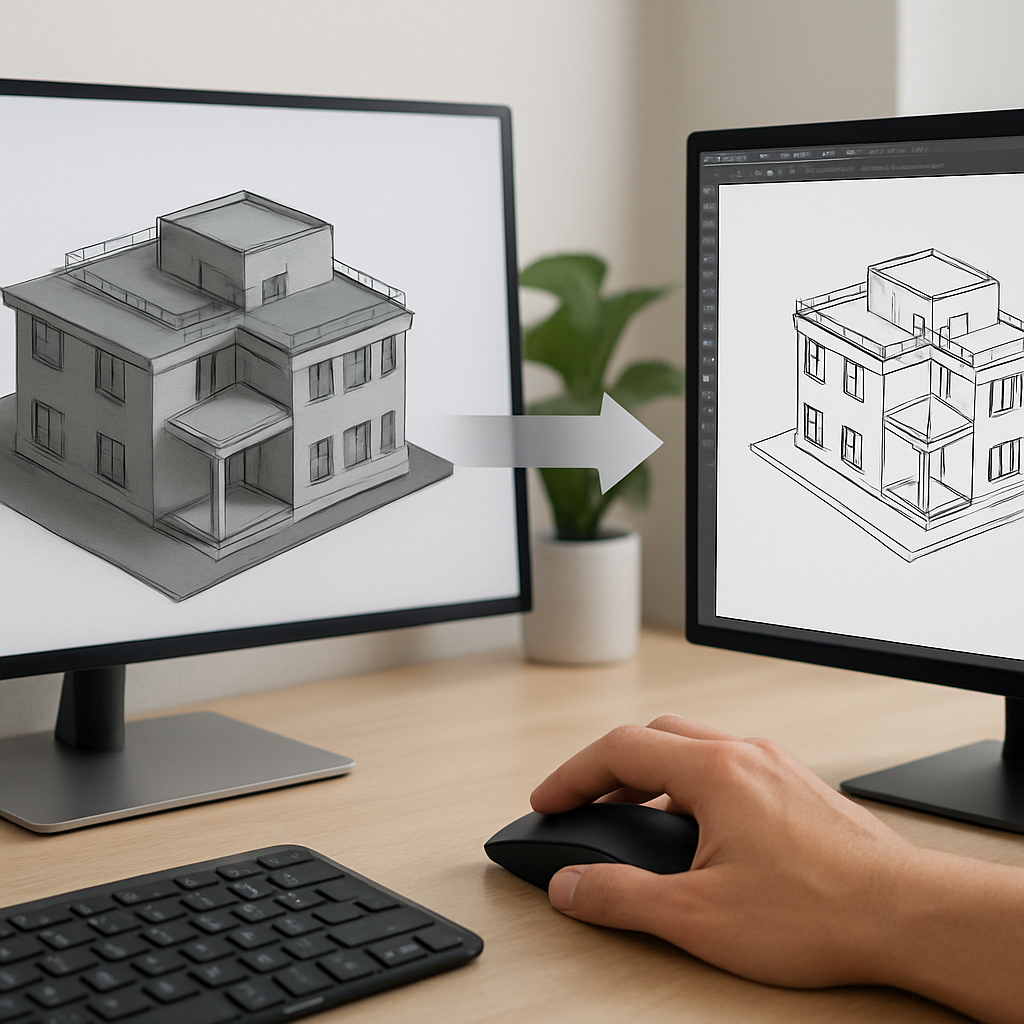
Understanding Why Vector Exports Matter in Revit Workflows
If you use Autodesk Revit regularly, you’re probably well aware of its robust 3D modeling powers and rich BIM features. But sooner or later, you’ll run into a scenario where you need to share a sharp, endlessly scalable snapshot of your project—maybe with a consultant, a client, or the graphic design team. Here’s where exporting Revit views as vector files really shines. Unlike raster images, which can get blurry or pixelated when you zoom in, vector formats like DWG, DXF, SVG, or PDF stay crisp and clean at any size. Plus, they make it simple to touch up linework in programs like Illustrator. For architects, engineers, and designers who care about precision—whether it’s for construction docs or swoon-worthy presentations—learning how to get flawless vector exports isn’t just another technical skill. It’s how you keep full creative and technical control, right from the earliest sketch to the final published sheet.
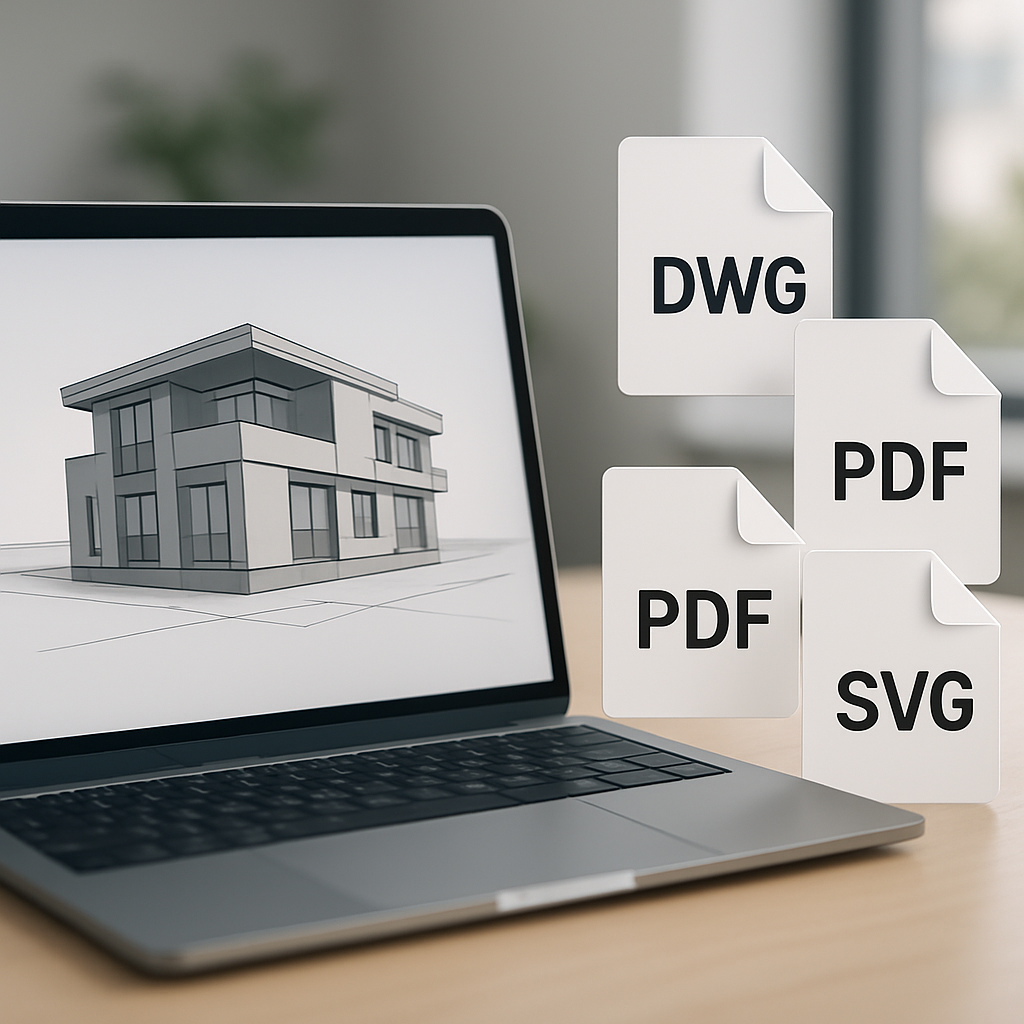
If you’ve ever found yourself frustrated by grainy exports, missing line weights, or sluggish back-and-forth with a graphic team, you’re not alone. There’s nothing quite like sending out a drawing only to have it come back with “Can you re-export this?” emails. This guide doesn’t just rattle off the basic steps. Instead, we’ll dig into the decisions, potential hiccups, and smart settings that help you get clean, editable, headache-free vector files from Revit—no guesswork, no wasted time.
Choosing the Right Vector Format: DWG, DXF, PDF, or SVG?
Before you jump into exporting, it’s worth taking a quick pause to ask: which vector format will actually serve your needs best? Each one comes with its own perks—and a few drawbacks. DWG and DXF are pretty much the gold standard for compatibility, especially if you’re part of a team using AutoCAD or other CAD-based tools. These formats hang onto layers and let you (or your consultants) edit every bit of linework, making them ideal for actual design collaboration. PDFs, on the other hand, are perfect for sharing with clients, popping into a print set, or archiving for the future. Everyone can open a PDF, and the lines stay sharp, but they’re not nearly as editable. SVGs are your friend if you need to bring your drawing into web graphics or vector art programs like Adobe Illustrator or Inkscape.
Here’s the thing: there’s no one-size-fits-all export format. Let’s say you’re prepping a diagram for a flashy marketing brochure. Exporting to SVG or PDF and refining it in Illustrator gives you more freedom to tweak colors, line weights, or even add annotations. But if your structural engineer calls and needs the floor plan as a base drawing, a DWG export—complete with all your careful layering—is the only way to go. Taking a few minutes to match your export format to your workflow (and your audience) on the front end saves hours of frustration later.
One more tip: Revit natively exports to DWG, DXF, and PDF, but not SVG. If SVG is on your wishlist, you’ll have to use a plugin or a clever workaround, like exporting to PDF first and then converting that to SVG. The route you choose can change your workflow, so keep that in mind as you plan your exports.
Step-by-Step: Exporting Revit Views to Clean, Usable Vector Files
Let’s be honest: exporting from Revit isn’t just about slapping the ‘Export’ button and crossing your fingers. If you want professional, easy-to-edit, and clutter-free files, a little prep goes a long way. Here’s how to do it right:
1. Prepare Your View: First things first—duplicate the view you plan to export. This lets you tweak it for external sharing without messing up your working drawings. Hide any elements you don’t want to show: annotations that only make sense internally, reference planes, or those temporary graphics you used to double-check a measurement. Adjust your view template, refine line weights, and fine-tune the visibility/graphics (VG) settings to get a result that’s clean and legible. Small changes, like turning off shadows or big color fills, can prevent oversized files and keep everything in vector instead of raster.
2. Set Up Sheets for Context: Sometimes, you need more than just a raw plan or section. If you want to include a title block, legends, multiple views, or notes, drop your view onto a sheet. Exporting from a sheet ties everything together as you meant it to be seen. Just remember—whatever you leave visible will become a vector line in your export, so less is often more.
3. Choose Export Settings Wisely: Now, head to File > Export and pick your format. For DWG or DXF, double-check your export setup: map Revit categories to CAD layers, set the units you need, and check how line weights will translate. For PDFs (especially in Revit 2022 and newer—or with plugins), make sure to select ‘Vector Processing’ instead of ‘Raster Processing.’ That one little checkbox is the difference between a sharp, scalable PDF and a pixelated mess. For SVGs, look into plugins like SVG Export for Revit, or export a PDF first and convert it using Adobe Acrobat or a solid online tool.
4. Test and Refine: Don’t just send off your export and hope for the best. Open it up in your next program—AutoCAD, Illustrator, or even just a PDF reader—and look for surprises. Are any lines missing? Do some things look too thick or too light? Are layers named sensibly? Sometimes hatches, filled regions, or certain annotation types go wonky during export. If something’s off, dive back into Revit and adjust your view or settings. It’s way easier to fix issues at the source than wrestle with them in Illustrator at the end.
5. Optimize for Collaboration: If you’ll be sharing this file with other people, help them out by keeping things as lightweight as possible. Trim out any unneeded views, avoid heavy fills or patterns, and use simplified linework when you can. If you follow some kind of layer or color convention, jot down a quick note or legend—nobody likes guessing what “Layer 43” means. A well-prepared vector file saves everyone time and headaches downstream.
Going Beyond the Basics: Tips for Perfecting Your Vector Files
Once you’ve mastered the technical steps, it’s the little refinements that really make the difference between “okay” and “wow.” For example, pay attention to how your line weights and styles from Revit show up in the vector export. That bold wall line might look perfect in a construction drawing, but it can dominate (or even ruin) a delicate diagram in Illustrator. Customizing your export setups—going for finer lines in presentation exports, heavier lines for technical docs—lets you fine-tune the look for each use.
Here’s a trick that many seasoned Revit users swear by: leverage ‘Detail Lines’ and ‘Masking Regions’ with intention. These elements come through as true vector objects in downstream tools and can be quickly edited or restyled. If you need to generate diagrams or overlays, consider building simplified, high-contrast views in Revit made specifically for export. Some firms actually keep dedicated “export views” in their templates—stripped of everything except what’s essential. It saves time, guarantees consistency, and keeps you from endlessly hiding and unhiding stuff before every export.
Color management is another area where a little effort pays off big. Using greyscale, a limited color palette, or your firm’s standard colors can keep your exports looking sharp and on-brand. Revit lets you override element colors at the view or filter level, so take advantage of that to get your files looking just right from the get-go.
If you keep running into stubborn issues—like fills exporting as raster instead of vector, or text coming out all wrong—don’t be afraid to break up the workflow. Export the geometry as a vector file, then add text, fills, or extra detail in Illustrator or InDesign. This hybrid method is actually pretty common in architectural graphics, and it lets you keep both flexibility and clarity.
Troubleshooting Common Headaches and Workflow Integrations
No matter how careful you are, exporting vector files from Revit has its quirks. Take, for instance, complex hatch patterns or gradients—they often get rasterized when you export, which defeats the whole point of a crisp vector file. If you notice this happening, try simplifying those patterns, or swap them out with something more export-friendly before you hit the export button. Fonts and symbols can also be tricky—custom fonts or unusual symbols might not come through cleanly. When in doubt, stick with standard fonts while exporting, and make font swaps or corrections in your vector editing program if needed.
Another recurring issue is file bloat. Sometimes your exported DWG or PDF grows to hundreds of megabytes, especially if there are tons of detail components or linked models in your view. To avoid this, use Revit’s ‘Purge Unused’ tool to clean house, and keep your views as simple and focused as possible. If you’re moving your file into Illustrator, flattening the layers and reducing complexity beforehand will help keep your workflow smooth and prevent frustrating slowdowns or crashes.
Bringing Revit exports into other software—like importing DWGs into Rhino or SVGs into web design tools—almost always takes a bit of experimentation. Don’t wait until the end of the project to test things out. Try exporting and importing a sample early on, and jot down the export settings that work best. If you’re part of a team, consider setting up shared export presets so everyone’s on the same page. And most importantly, keep the conversation open: let collaborators know what to expect, and ask for feedback if something doesn’t work as planned. The more you communicate, the smoother your projects will go.
At the end of the day, turning Revit views into vector files is equal parts know-how and creativity. If you approach it thoughtfully—tweaking settings, learning the quirks of each format, and refining your workflow along the way—you’ll end up with exports that aren’t just technically sound, but genuinely useful. This saves time, reduces stress, and makes your projects shine, from the first sketch all the way through to the final handoff.


